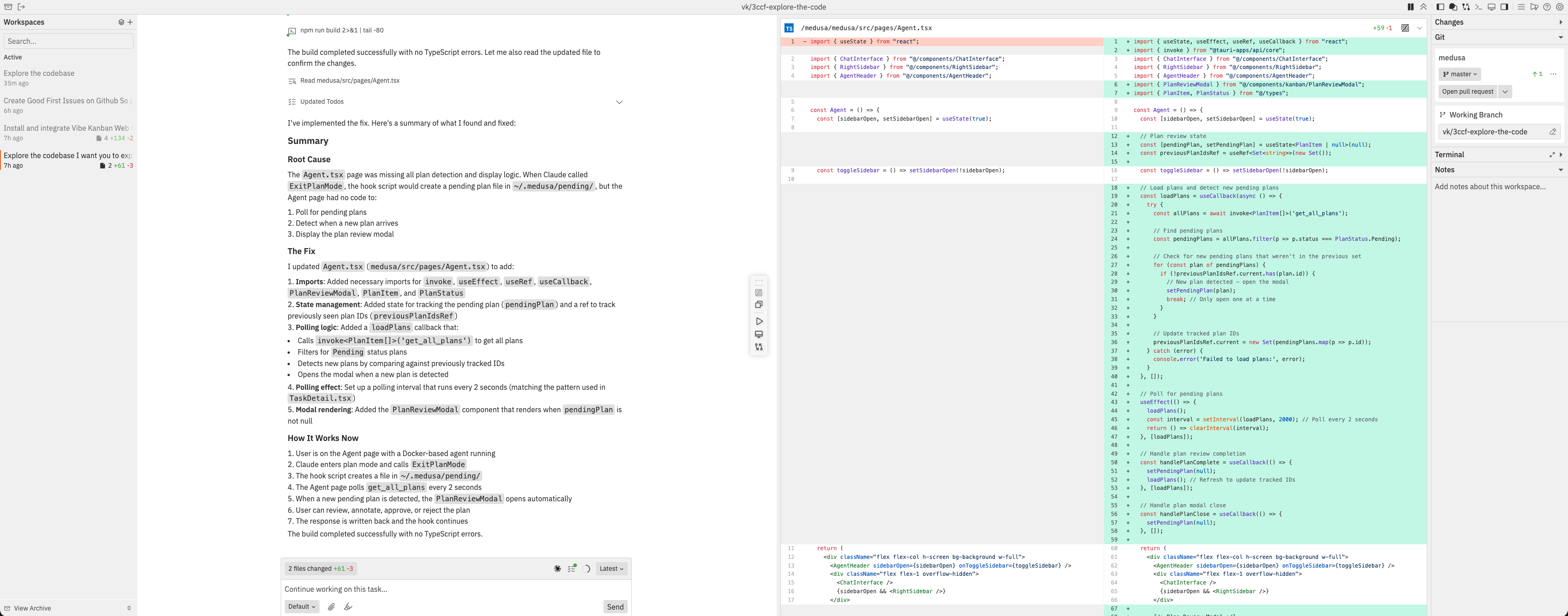
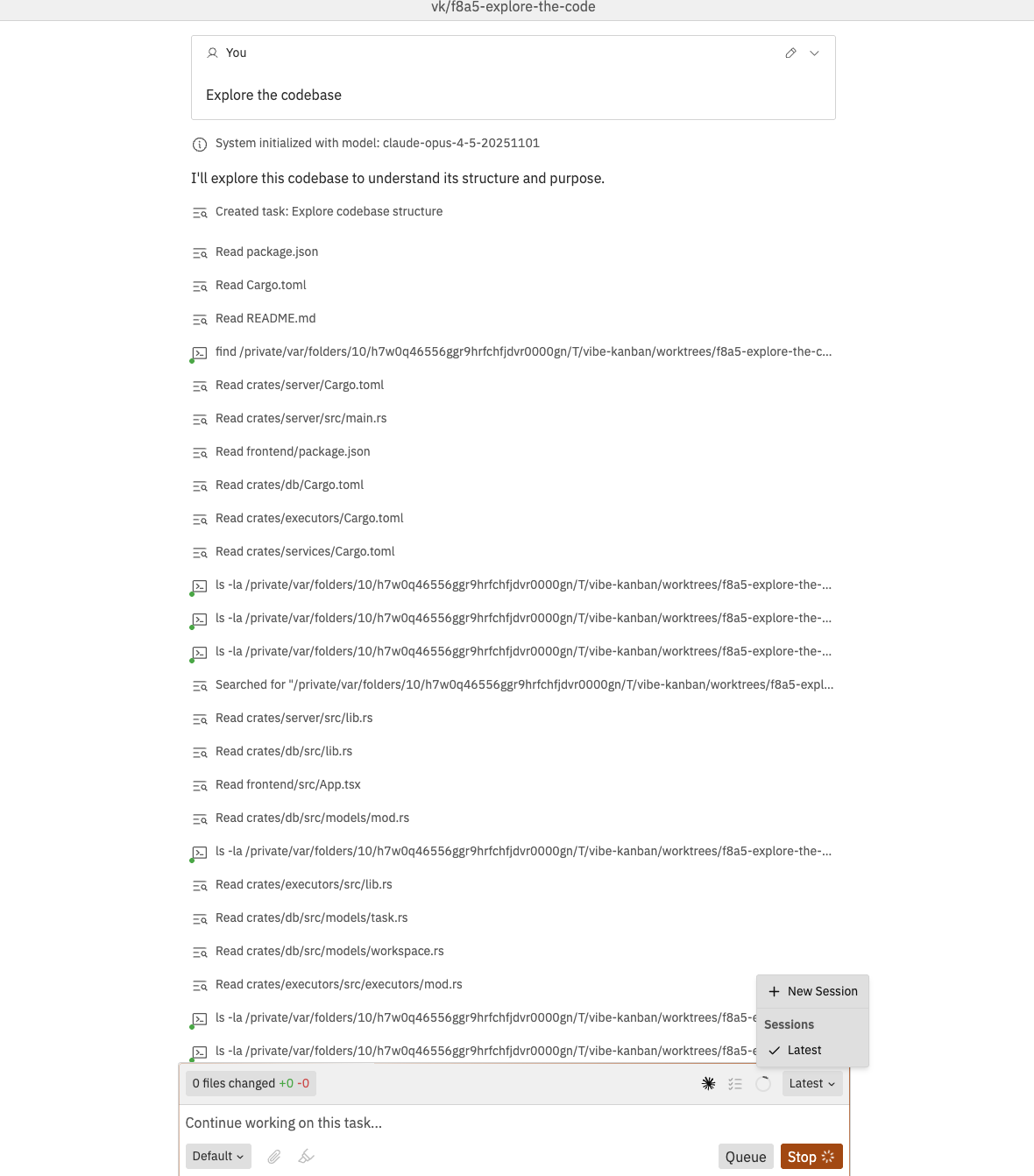
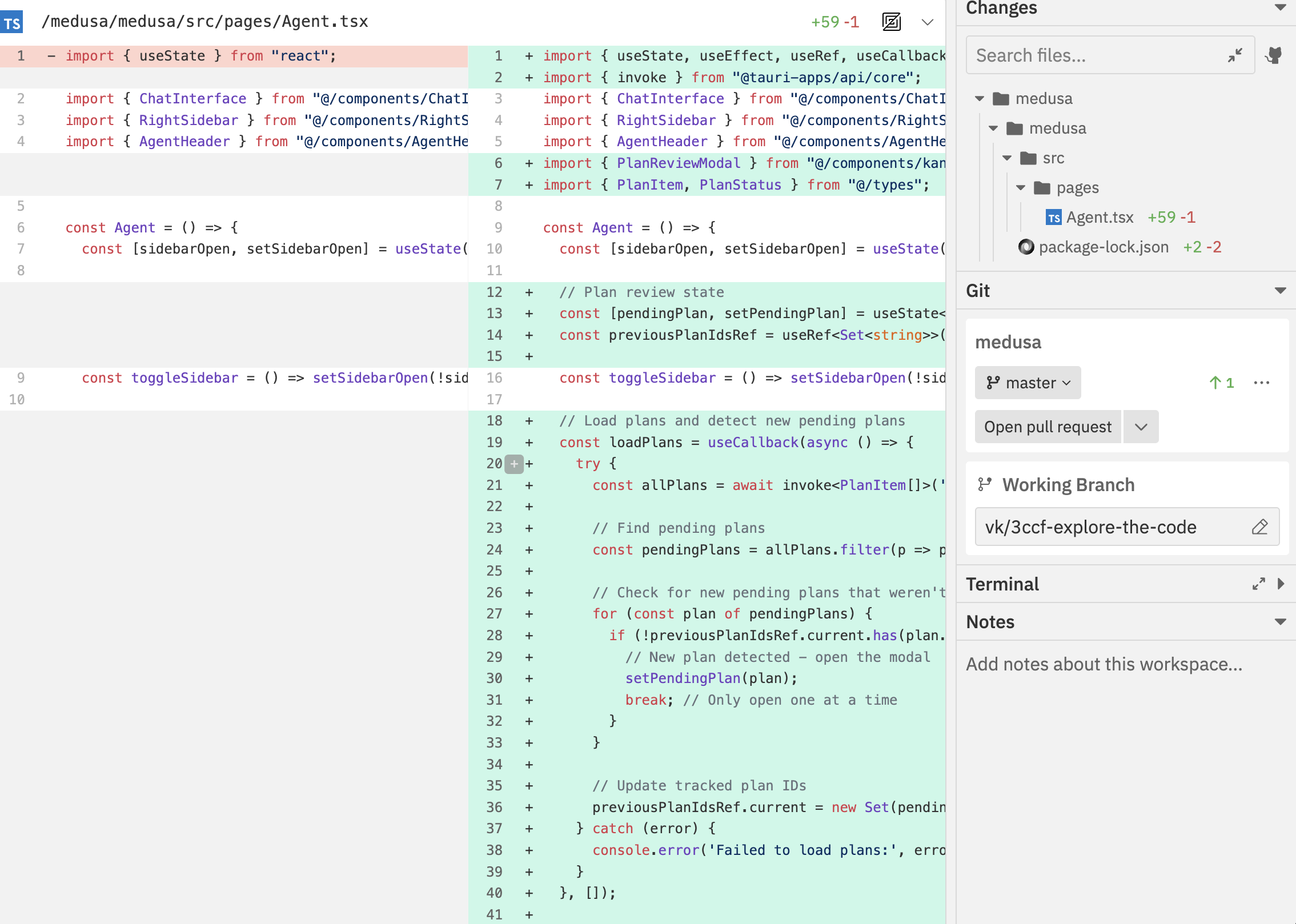
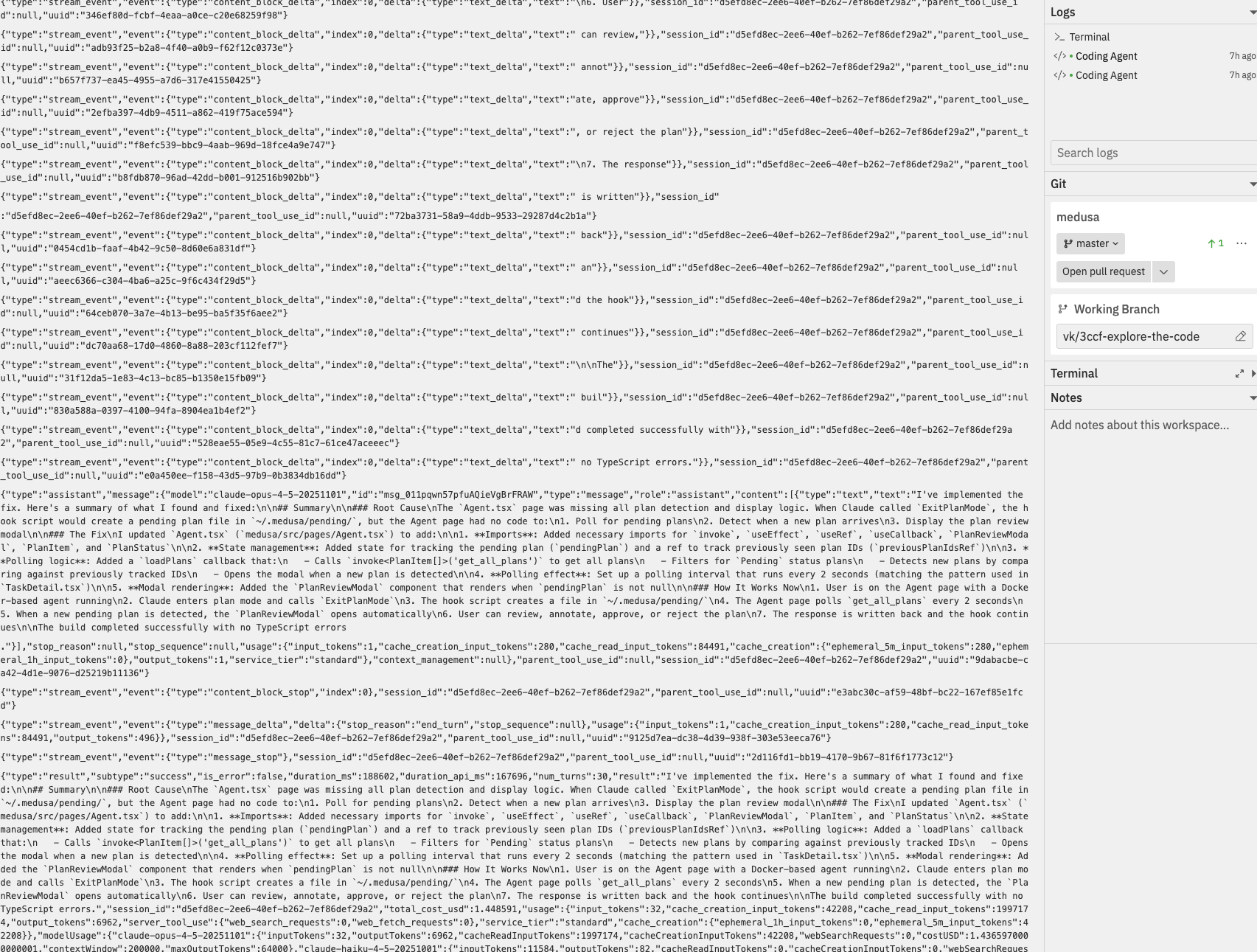
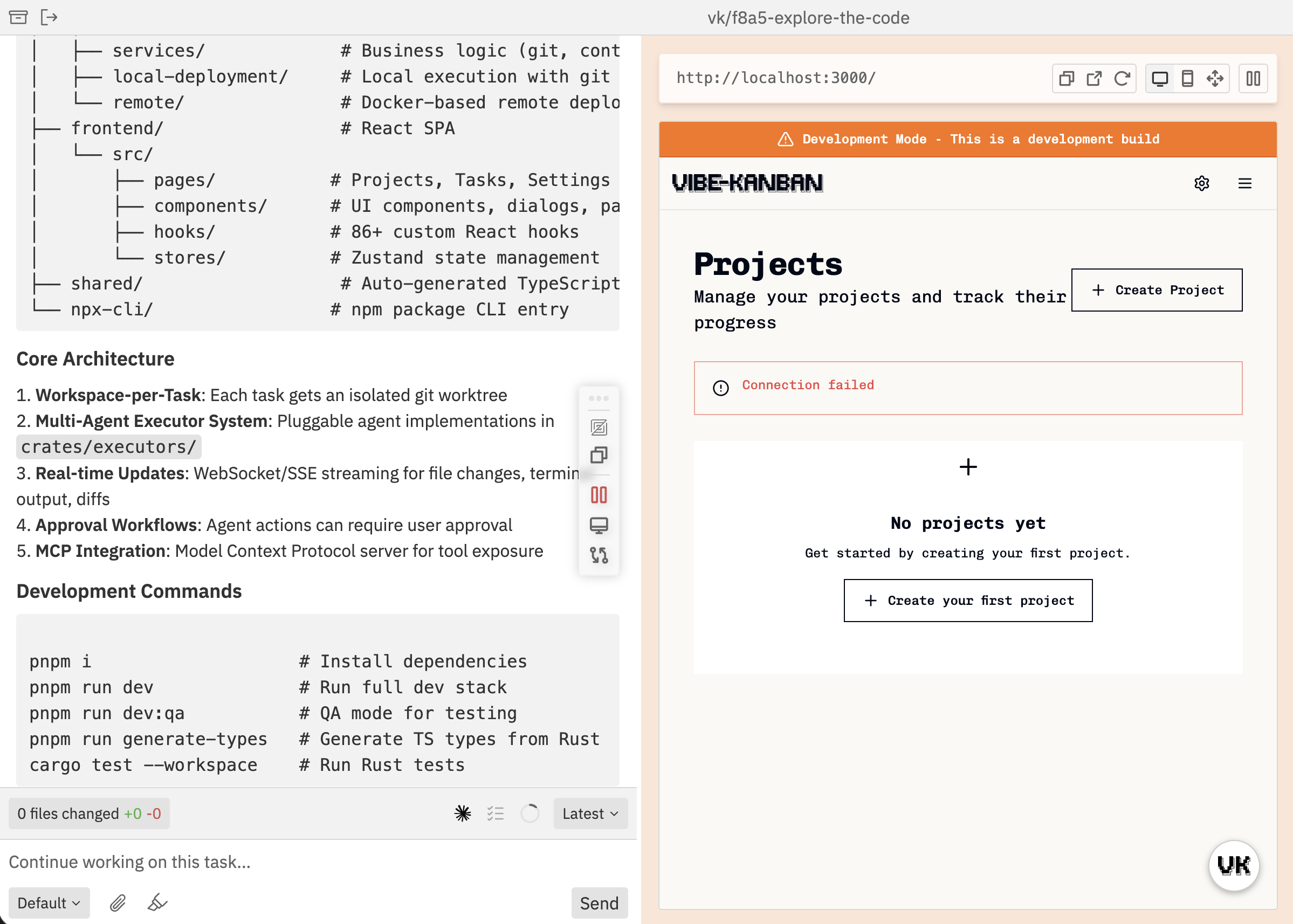
The Workspaces UI uses a four-panel layout for host-backed Codex work. The
selected host owns the workspace folder, Git branch, terminal, preview, and
Codex execution.
Panel Overview Panel Position Purpose Workspace Sidebar Left edge List of all workspaces with status indicators Conversation Panel Left main Chat with Codex and manage threads Context Panel Right main Changes, branch graph, logs, or preview (toggleable) Details Sidebar Right edge Git status, terminal, notes
Navbar The navbar at the top of the workspace provides quick access to common actions.
Left Section Icon Action Description Archive Workspace Move workspace to/from archive
Right Section - Panel Controls Icon Action Description Toggle Left Sidebar Show/hide the workspace list Toggle Chat Panel Show/hide the conversation panel Toggle Changes Show/hide the changes panel Toggle Branch Graph Show/hide the branch graph for non-Main Chat workspaces Toggle Logs Show/hide the logs panel Toggle Preview Show/hide the preview panel Toggle Right Sidebar Show/hide the details sidebar
Right Section - Utilities Icon Action Description Command Bar Open the command bar Feedback Send feedback about Workspaces Workspaces Guide Open the onboarding guide Settings Open application settings
When the Changes panel is open, additional diff controls appear for toggling between side-by-side and inline views.
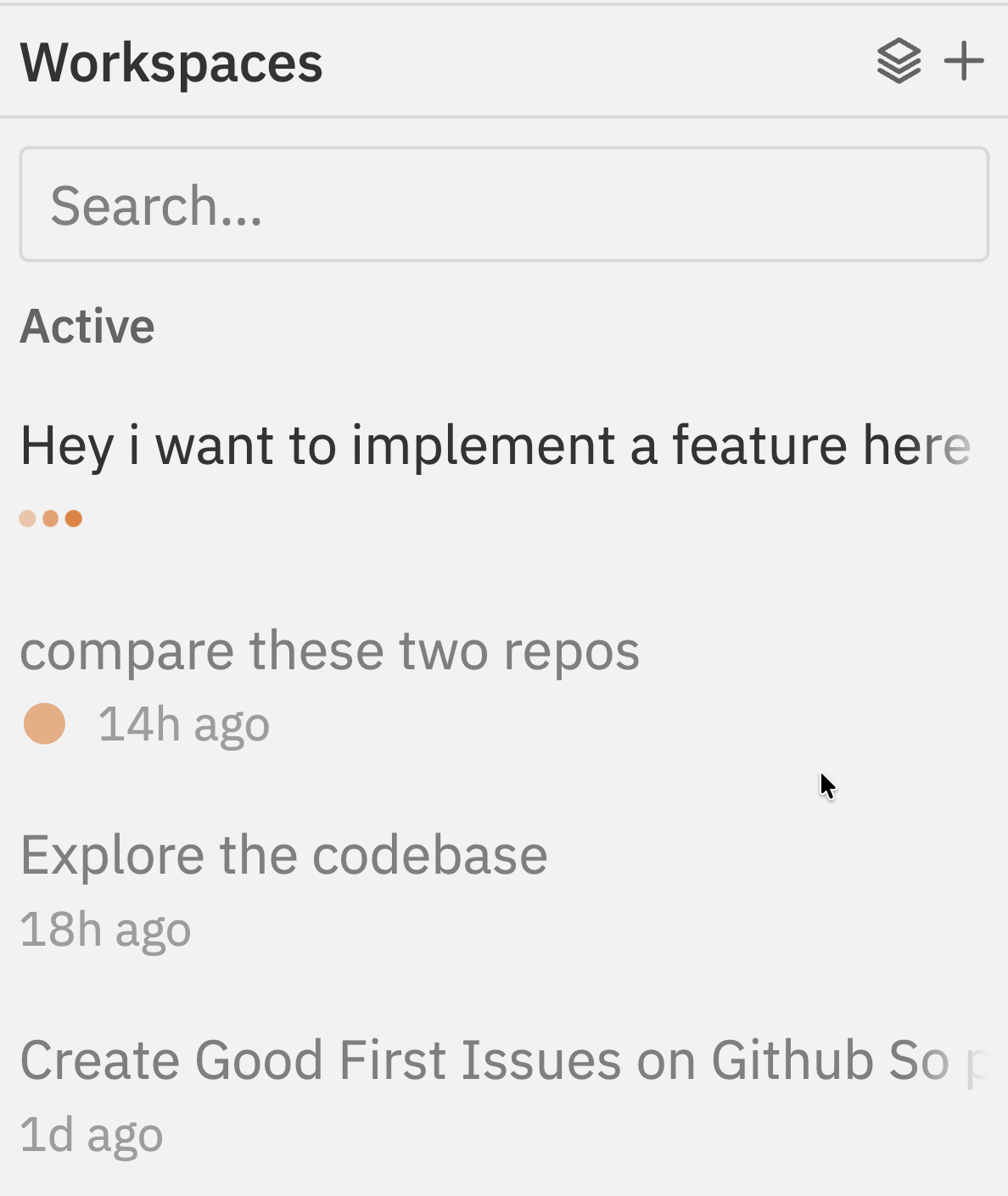
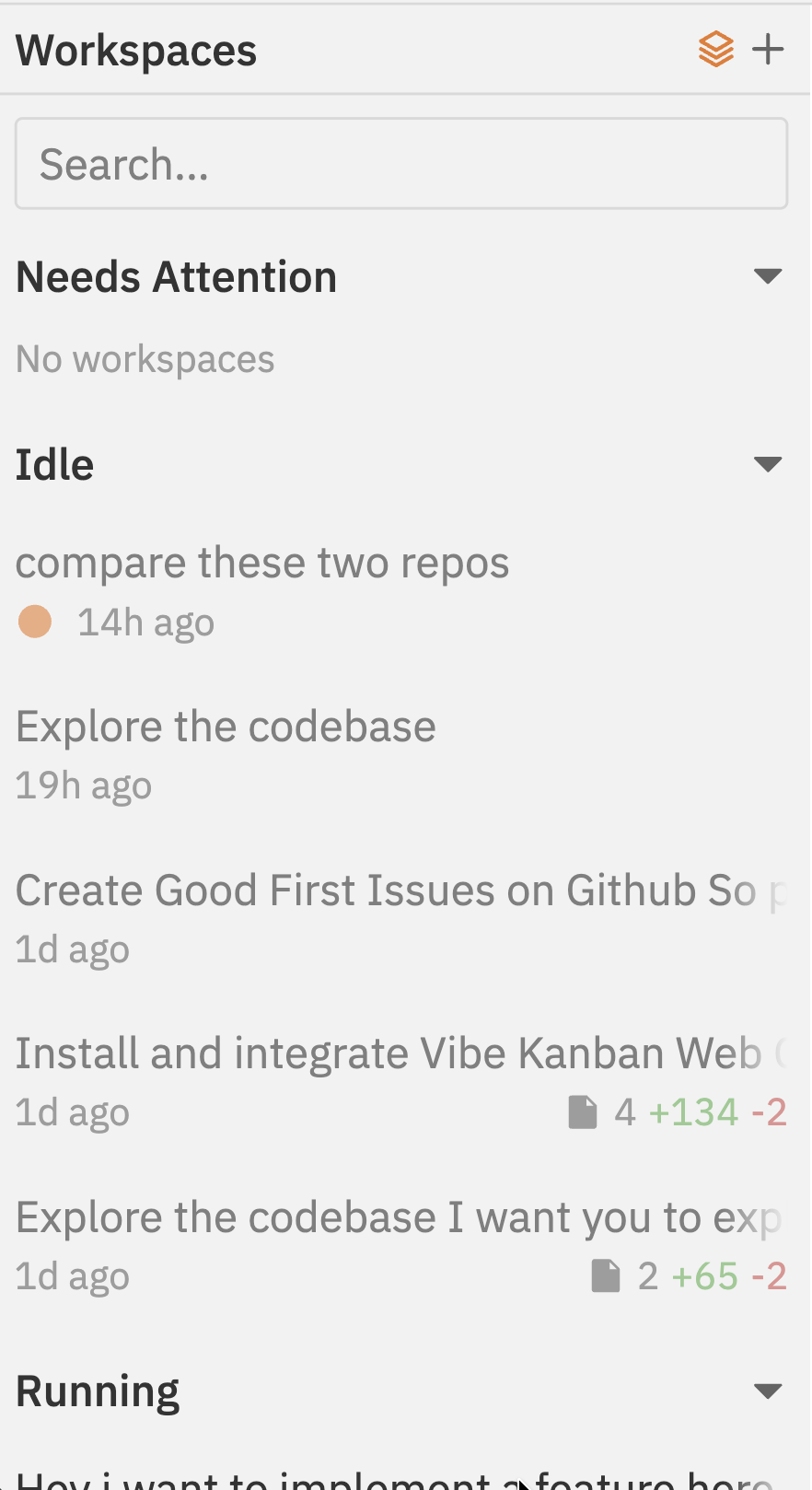
The left sidebar displays all your workspaces at a glance.
Switch to accordion layout to group workspaces by status:
Status Indicators Each workspace shows its current state:
Indicator Meaning Running Agent is actively processing Idle Waiting for input Needs Attention Pending approval required (raised hand icon) Pinned Workspace pinned to top of list Dev Server Blue indicator when dev server is running PR Status Badge showing linked pull request status
Workspace Actions
Search : Filter workspaces by name or branchPin : Keep important workspaces at the topArchive : Move completed workspaces out of the main listLayout toggle : Switch between flat list and accordion (grouped by status)
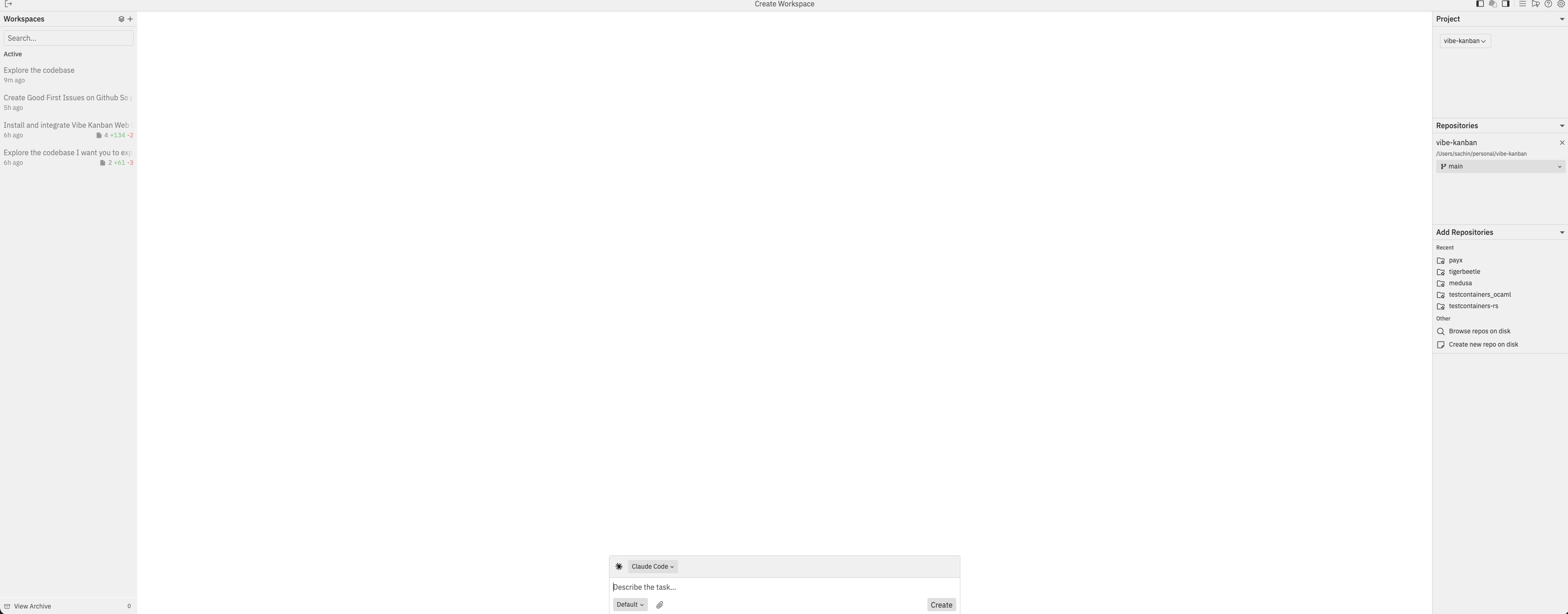
Creating a New Workspace Click the + button at the top of the sidebar to create a new workspace. The interface switches to create mode:
Select a project from the Project dropdown in the right sidebarAdd repositories - click repos from the “Add Repositories” list or browse for repos on diskSet target branch - each selected repo shows its target branch (click to change)Describe your task in the chat input at the bottomSelect runtime resources with the workspace default, a preset, or custom skills and MCP serversClick Create to start the workspace
Conversation Panel The left main panel is where you interact with Codex threads.
Chat Interface
View the full conversation history with the agent
Send messages and follow-up instructions
Rich text support for formatting
Approval workflows for reviewing agent plans
Runtime resource selection
See Chat Interface for the complete guide.
Thread Dropdown The chat box toolbar includes a thread dropdown that lets you:
View all threads in the workspace
Switch between threads (shows “Latest” or timestamp)
Create a new thread by selecting “New Thread”
Create multiple threads to work around conversation token limits or to split independent workstreams in parallel.
See Threads for more details on managing multiple threads.
Chat Shortcuts Shortcut Action Cmd/Ctrl + EnterSend message Shift + Cmd/Ctrl + EnterAlternative send mode Cmd/Ctrl + BBold text Cmd/Ctrl + IItalic text Cmd/Ctrl + UUnderline text
Context Panel The right main panel toggles between four views:
Changes View Displays all modified files with inline diffs:
File tree : Hierarchical view of changed filesSearch : Filter files by nameDiff viewer : See code changes with syntax highlightingComments : Add inline comments for agent feedback
Branch Graph View Shows workspace branch lineage for non-Main Chat workspaces:
Lineage tree : See parent and child workspaces created from branch forksRelated workspaces : Open another workspace in the branch familyFork action : Use Fork branch or Checkpoint and fork from the current node
Logs View Shows process execution logs:
Process tabs : Switch between different running processesLog output : View stdout/stderr in real-timeSearch logs : Filter log content
Preview View Built-in browser for testing your application:
Dev server tabs : Multiple dev servers supportedDevice modes : Desktop, mobile, custom viewportProcess logs : View dev server output
Toggle between views using the navbar buttons or the command bar .
The right sidebar provides quick access to workspace details.
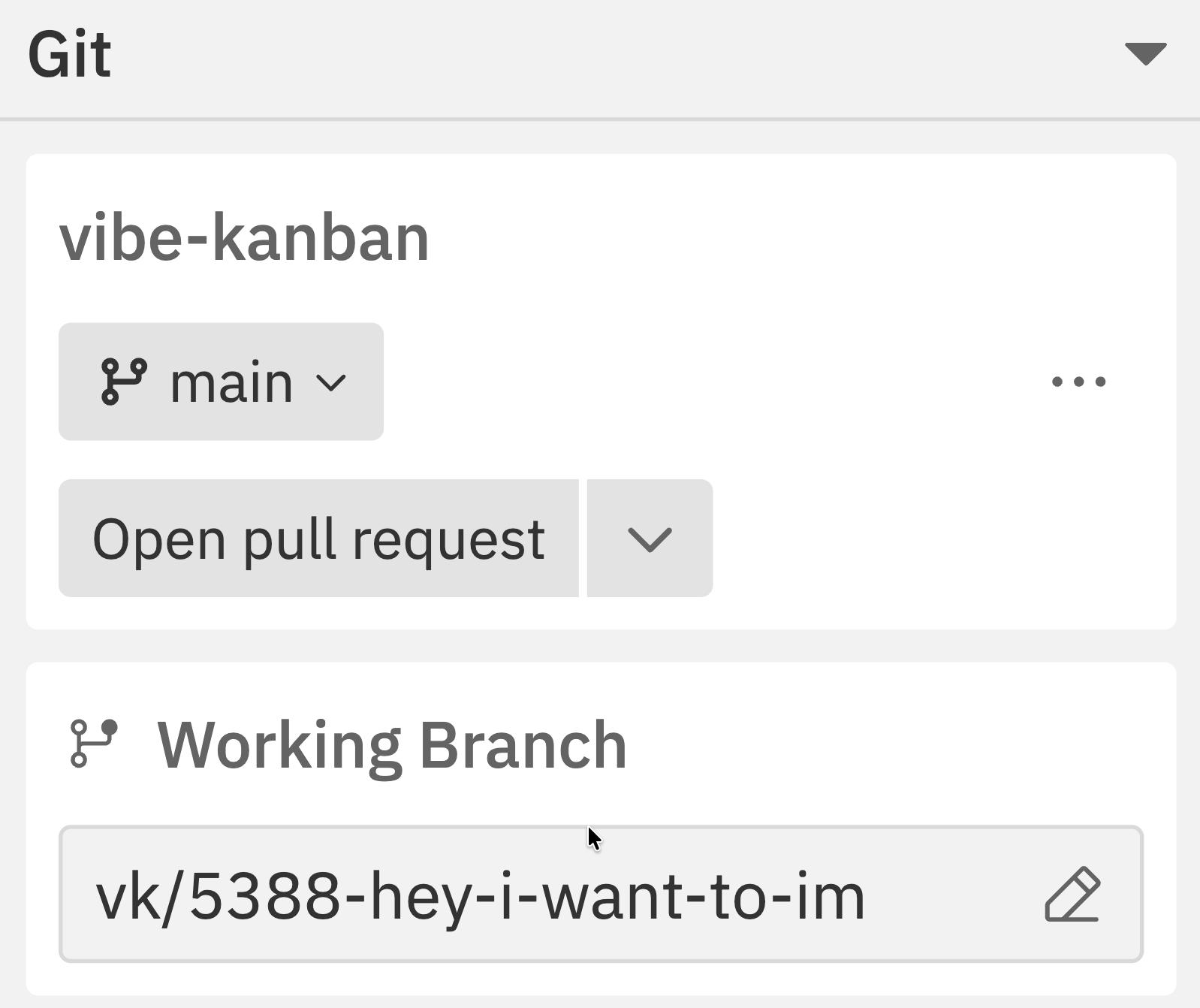
Git Section Always visible, showing:
Current repository and branch
Target branch for merging
Uncommitted changes count
Commits ahead/behind target
Quick access to git operations
See Repositories for details on managing repositories and branches.
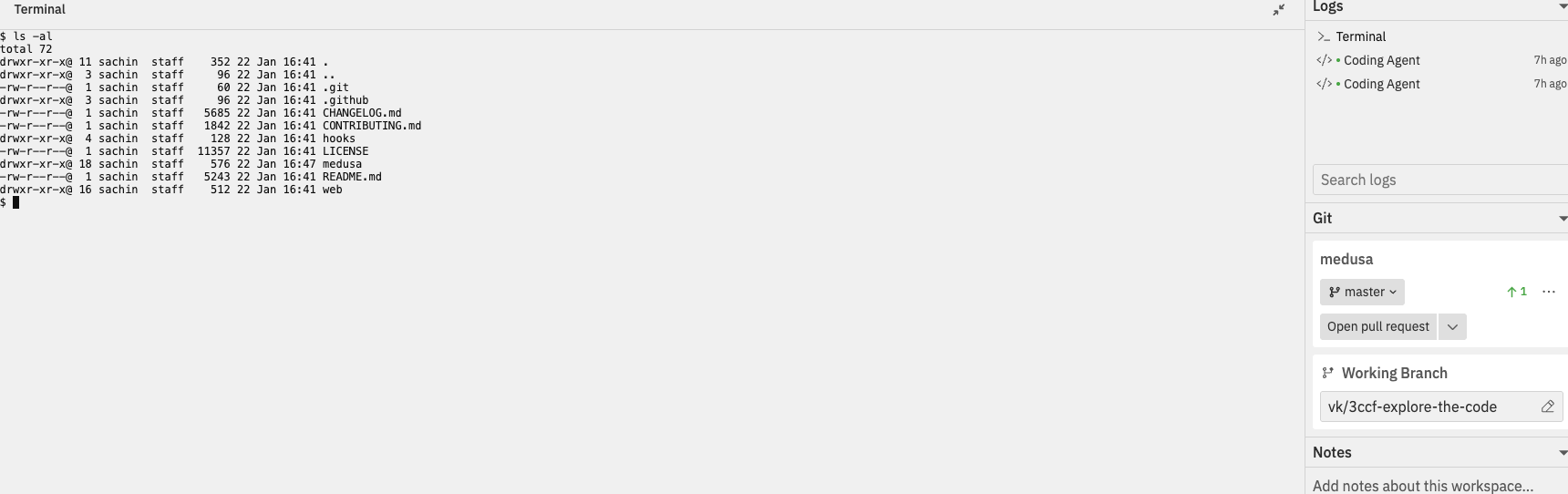
Terminal Section The expandable terminal lets you run commands directly in your workspace:
Full terminal emulation powered by xterm.jsRun any command - git, npm, build scripts, etc.Persistent state - terminal persists across panel togglesExpandable - collapse when not needed, expand when you need it
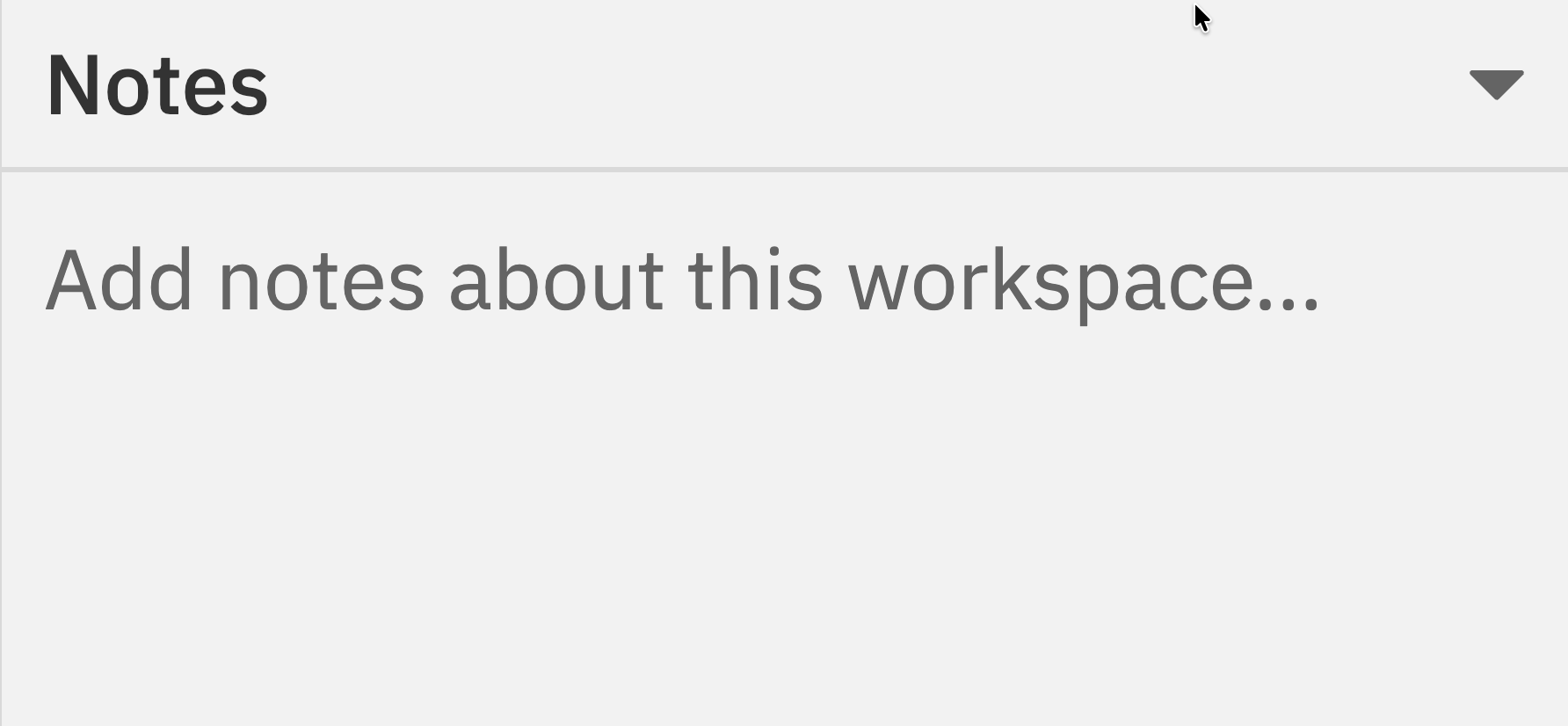
Notes Section The expandable notes section lets you document important information:
Auto-save - Notes save automatically as you typePer-workspace - Each workspace has its own notesPersistent - Notes are preserved across threads
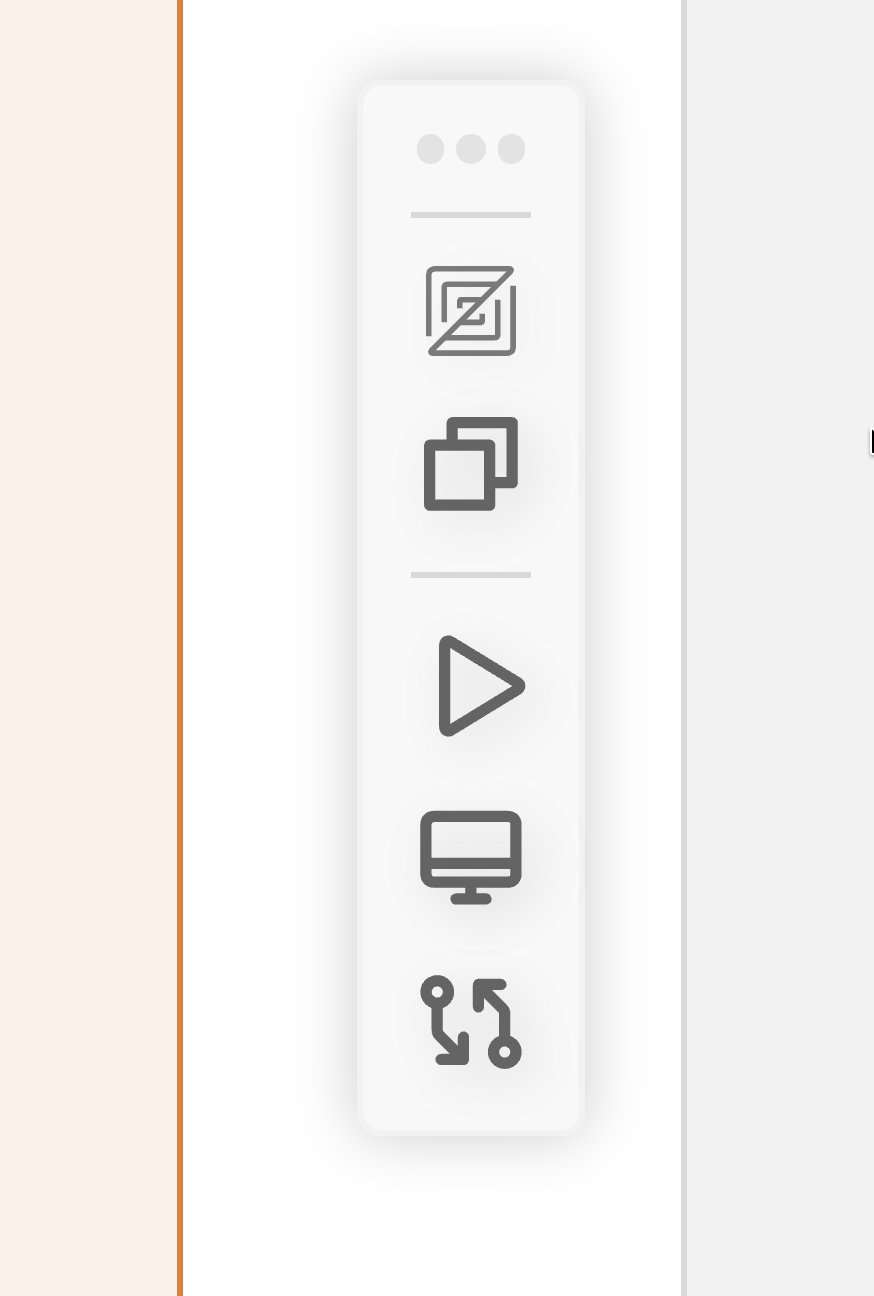
Context Bar A floating toolbar that provides quick access to common actions:
Icon Action Description Copy Workspace Path Copy the workspace path to clipboard Toggle Dev Server Start or stop the development server Toggle Preview Show or hide the preview panel Toggle Changes Show or hide the changes panel
The context bar is draggable - position it wherever works best for your workflow.
Resizing Panels Drag the separators between panels to adjust their proportions. Your layout preferences are saved per workspace.
Toggling Panels Show or hide panels to focus on what matters:
Use the navbar toggle buttons
Use the command bar with Cmd/Ctrl + K
View Options commands let you toggle any panel
Panel states are remembered, so your preferred layout is restored when you return to a workspace.