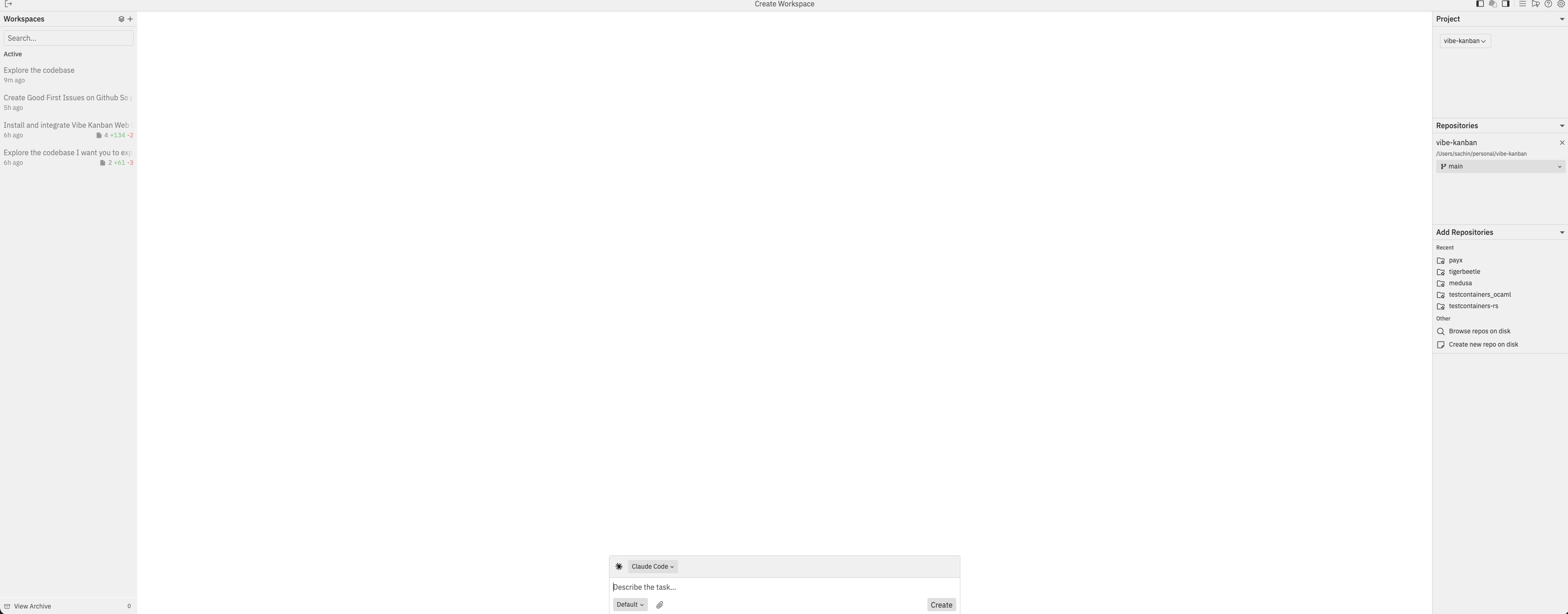
What Happens When You Create a Workspace
Understanding what happens behind the scenes helps you work more effectively:Host worktree is created
Jaidu asks the selected host to create a git worktree - a separate working
directory with its own branch. This keeps your changes isolated from your main
codebase. Your original repository remains untouched.
Working branch is created
A new branch is created based on your target branch (e.g.,
main). The branch
name is generated from your branch prefix settings and task name.Codex thread is ready
A Codex thread begins when you send a message. It can then read files, make
changes, and run commands within your workspace on the selected host.
Where do workspaces live? Worktrees are created on the selected host. You
can configure the workspace directory in Settings → General.
Creating a New Workspace
Open the Create View
Click the + button at the top of the workspace sidebar, or use the command bar (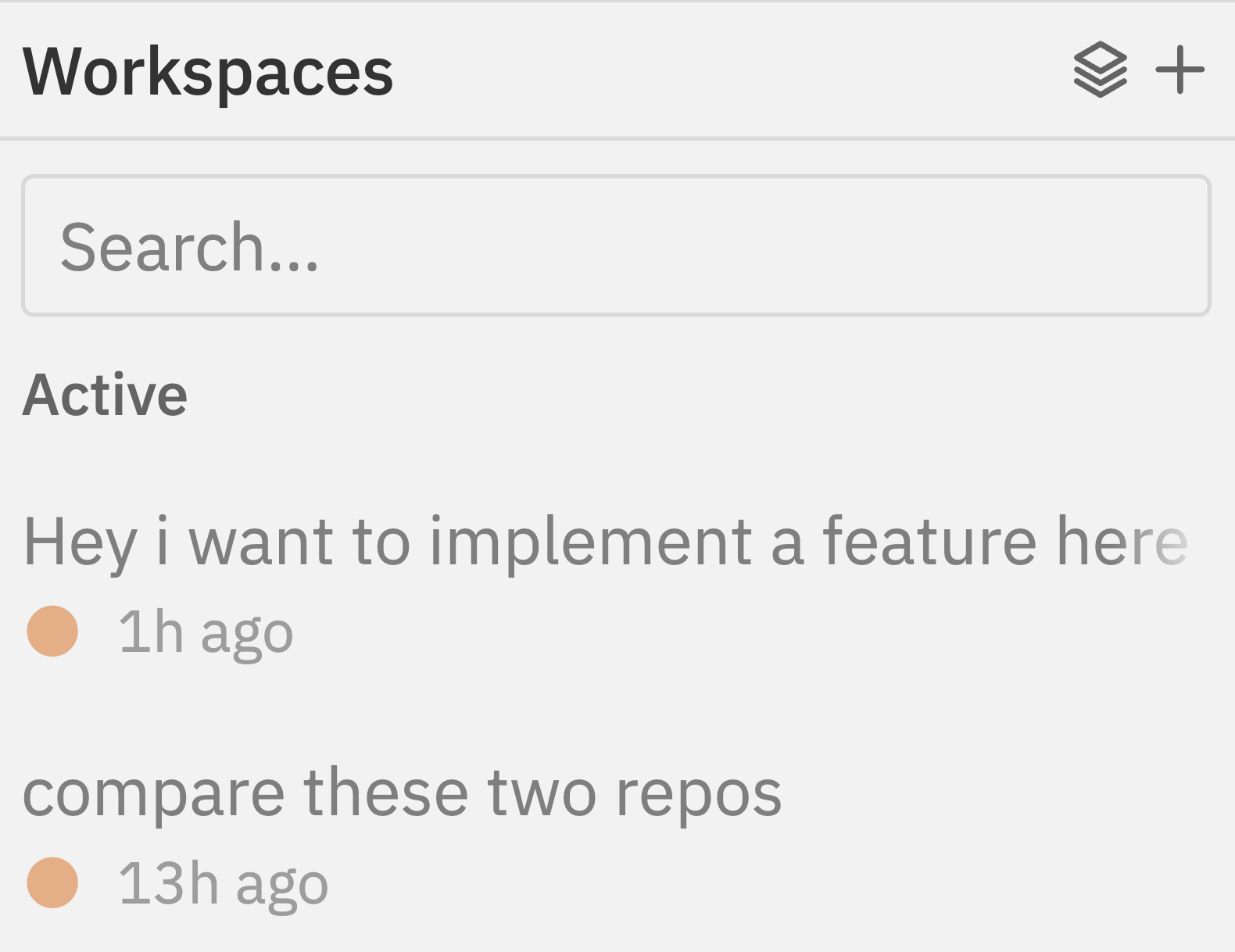
Cmd/Ctrl + K) and select New Workspace.Select a Project
Choose a project from the Project dropdown in the right panel. Projects group related repositories together.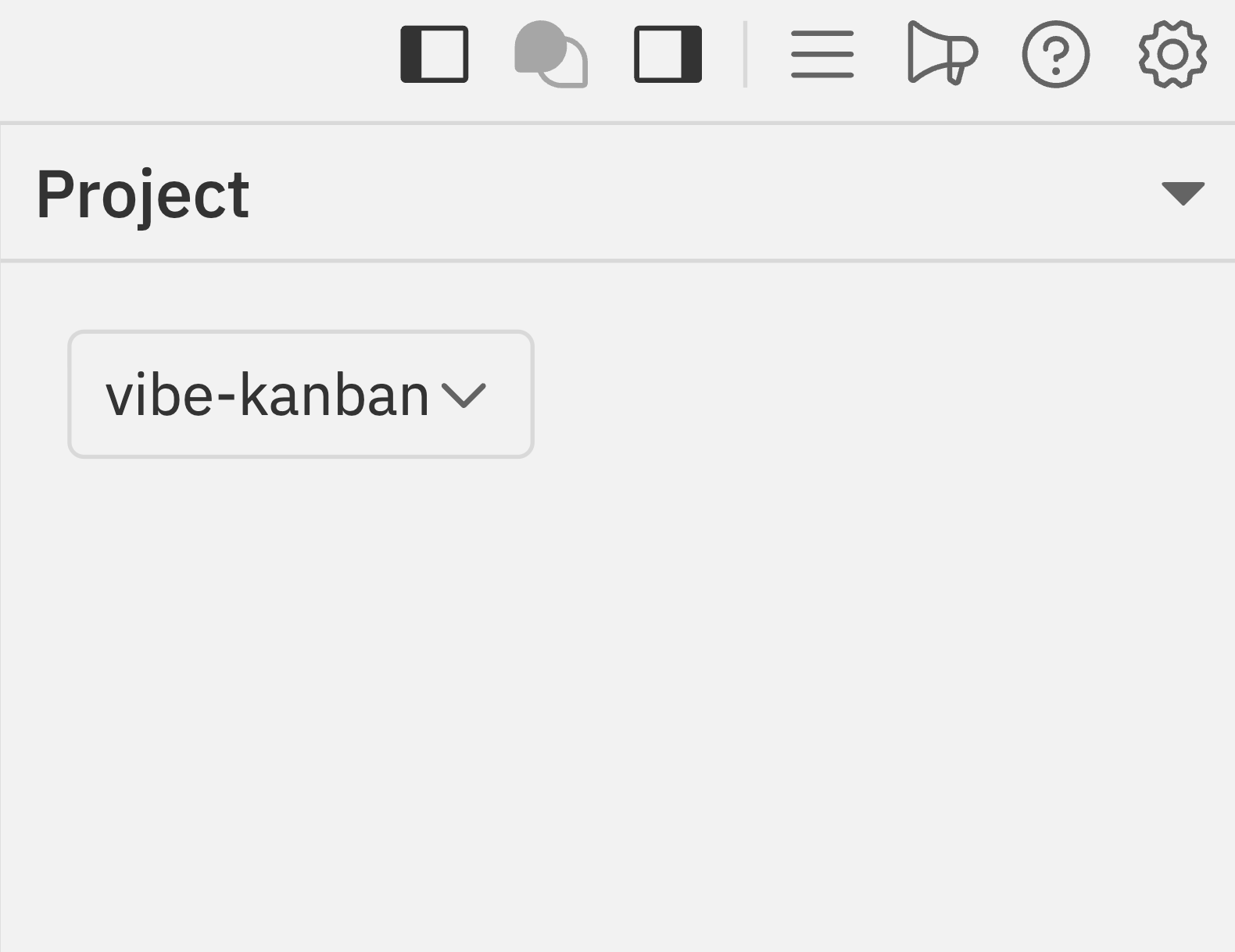
If you haven’t created a project yet, see Creating a New Project below.
Add Repositories
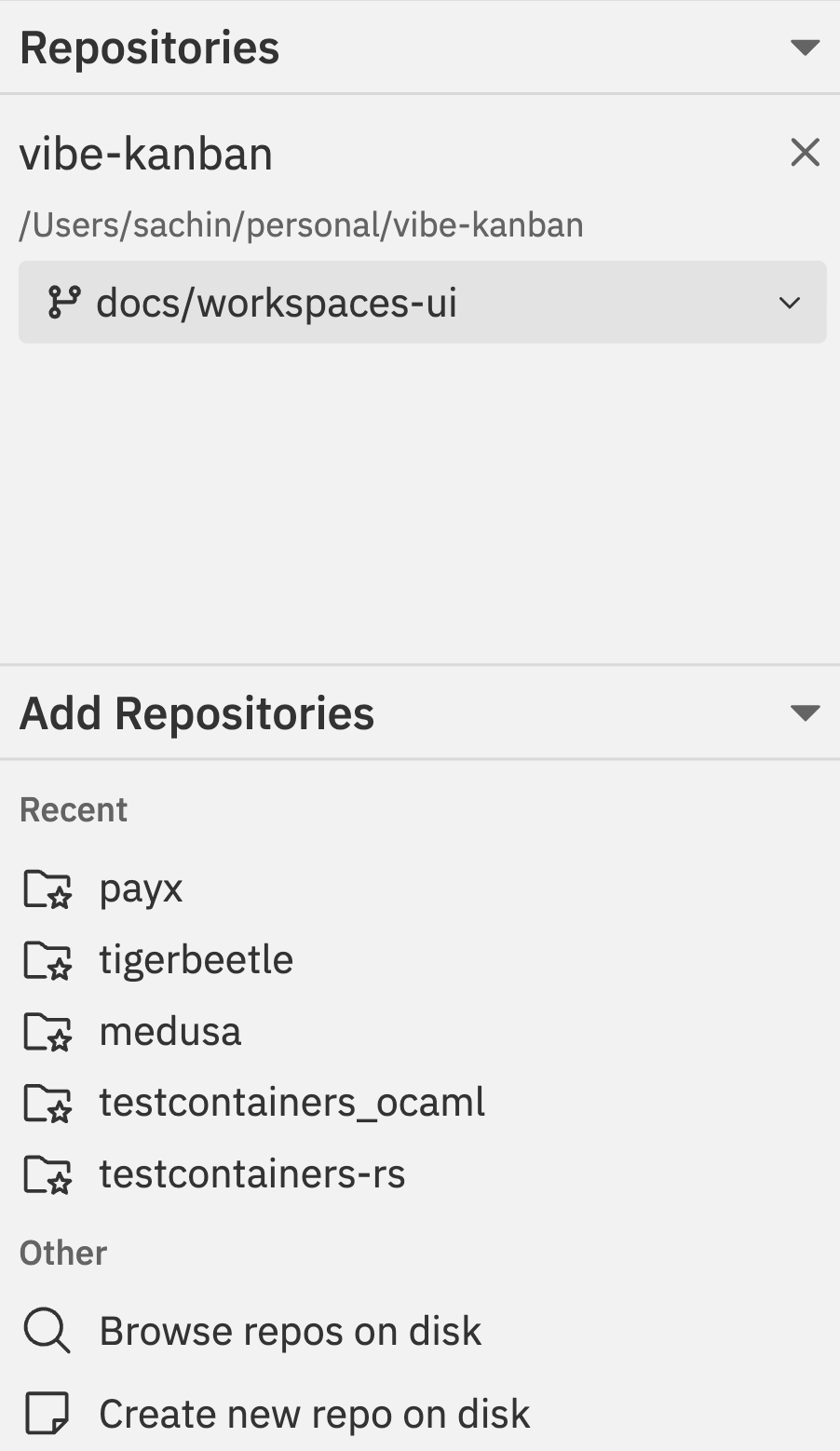
- Recent repositories - Click any repo from the list to add it
- Browse repos on disk - Find repositories not in the recent list
- Create new repo on disk - Initialise a new git repository
Set Target Branches
For each selected repository, set the target branch - this is the branch your changes will eventually be merged into (e.g.,
main or develop).Click the branch dropdown next to each repository to change the target branch.Target branch vs Working branch - what’s the difference?
- Target branch = Where your changes will eventually be merged (e.g.,
main). You set this. - Working branch = Where your changes are made. Auto-created from target using your branch prefix settings.
Describe Your Task
In the chat input at the bottom, describe what you want to accomplish. Be specific about:
- What feature or fix you need
- Any constraints or requirements
- Files or areas of the codebase to focus on
Select runtime resources
Choose which runtime resources Codex can use in the workspace. You can use
the organisation default, choose a saved runtime preset, or customise the
skills and MCP servers for this workspace.Jaidu saves this selection as the workspace runtime snapshot. Later chat
follow-ups can override runtime resources for a single turn without changing
that saved snapshot.
See Workspace Runtime Presets for
details on runtime presets and custom resource selection.
Creating a New Project
If you need to create a new project before setting up your workspace: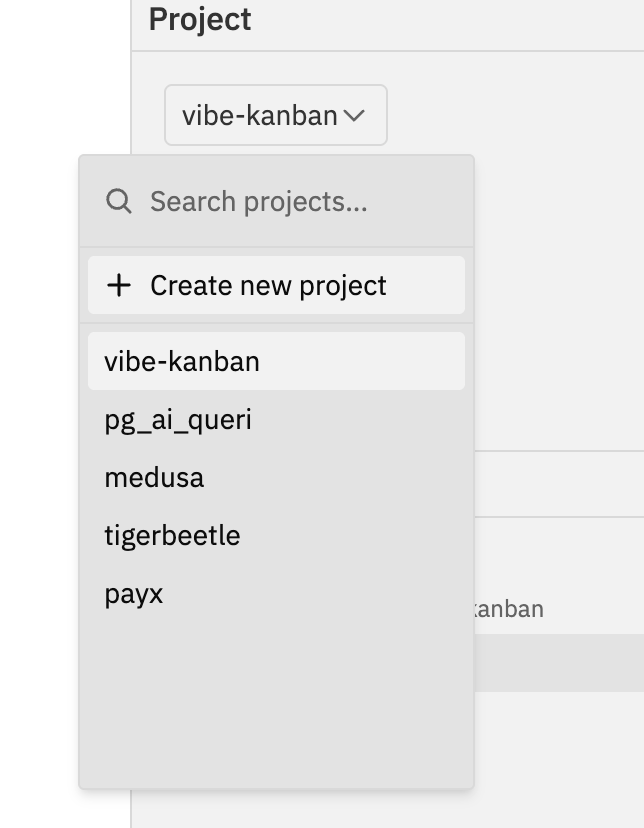
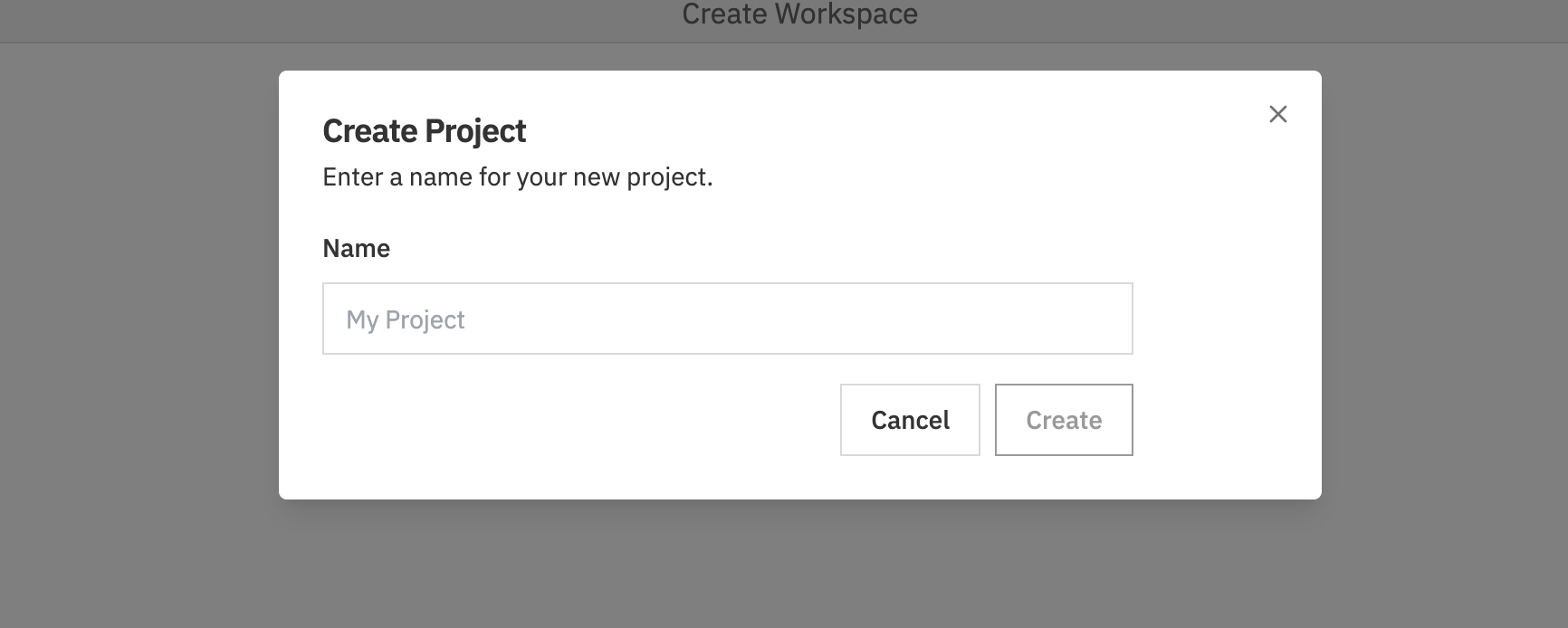
After creating a project, you can configure additional settings like setup scripts, dev server scripts, and cleanup scripts in the project settings. See Projects & Repositories for more details.
Workspace Settings
Once a workspace is created, you can configure additional settings:Working Branch
The workspace automatically creates a working branch for your changes. You can view and change this in the Git section of the details sidebar.Dev Server
If your project has a dev server script configured, you can start it using:- The Play icon () in the context bar
- The command bar:
Cmd/Ctrl + K→ Start Dev Server
Configure dev server scripts in your project settings. See Projects & Repositories for setup instructions.
Workspace Notes
Use the Notes section in the details sidebar to document important information about the workspace - requirements, decisions, or anything you want to remember.Fork Branch From A Workspace
Use Fork Branch when you want to continue from the current workspace state in a new isolated workspace.- Open a non-Main Chat workspace.
- Open the command bar (
Cmd/Ctrl + K). - Go to Workspace Actions.
- Select Fork Branch.
- uses the same repositories as the parent workspace;
- sets each repository target branch to the parent workspace branch;
- records branch lineage so the Branch Graph can show the parent/child relationship;
- starts with its own fresh thread history in a new host-side folder/worktree.
Branch/fork is a workspace operation. It is not available from Main Chat because
Main Chat is bound to the project root and does not create a temporary branch by
itself.
Archiving Workspaces
When you’re done with a workspace, archive it to keep your workspace list clean: From the navbar:- Click the Archive button () in the top left of the navbar
- Press
Cmd/Ctrl + K - Go to Workspace Actions → Archive
Troubleshooting
I can't see my repository in the list
I can't see my repository in the list
Possible causes:
- The repository hasn’t been added to a project yet
- The folder isn’t a git repository (no
.gitfolder) - The path isn’t accessible
- Click Browse repos on disk to manually locate the repository
- Ensure the folder contains a
.gitdirectory - Check that
jaidu-agenthas permission to access the folder on the selected host
Workspace creation fails
Workspace creation fails
Possible causes:
- Git worktree creation failed (usually due to uncommitted changes in the original repo)
- Branch name conflict
- Disk space issues
- Commit or stash any uncommitted changes in your original repository
- Try a different target branch
- Check available disk space (worktrees require space for a full copy of tracked files)
Codex doesn't start after creating workspace
Codex doesn't start after creating workspace
Possible causes:
- Codex is not installed or configured
- API key issues
- Network connectivity problems
- Check that Codex is installed: run the CLI command manually in terminal
- Verify API keys are configured in Settings → Agents
- Check your internet connection
Setup script fails
Setup script fails
Possible causes:
- Script has errors
- Missing dependencies
- Wrong working directory
- Test the script manually in terminal first
- Check the Logs panel for error messages
- Ensure paths in the script are relative to the repository root
Related Documentation
- Interface Guide - Learn about the workspace layout and panels
- Multi-Repo & Threads - Working with multiple repositories
- Threads - Creating and managing conversation threads
- Command Bar - Quick actions and keyboard shortcuts