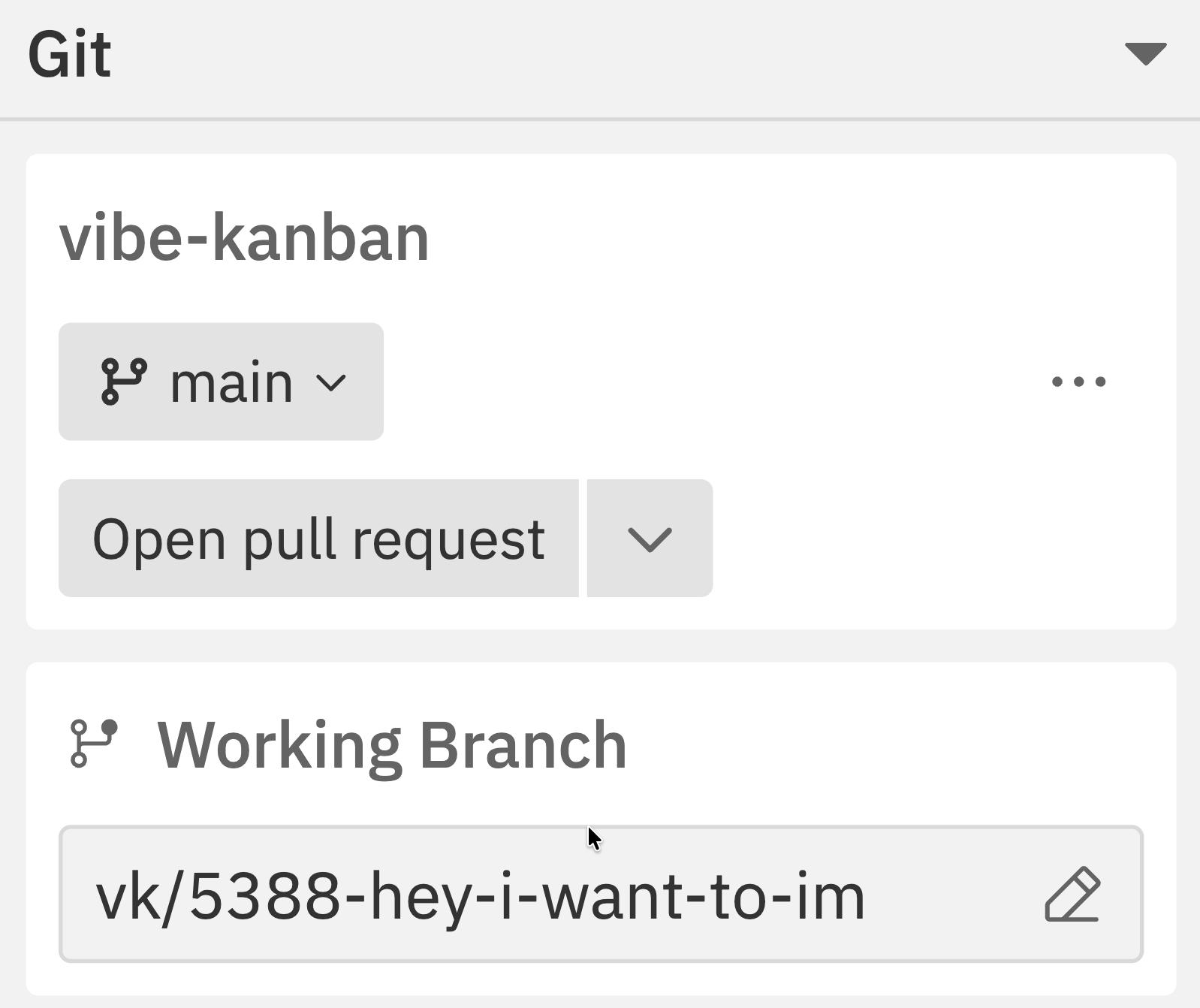
Git Basics for Workspaces
If you’re not familiar with git, here’s what you need to know:What is a branch?
What is a branch?
A branch is a separate line of development. Think of it as a copy of your code where you can make changes without affecting the original.In Workspaces:
- Target branch (e.g.,
main) - The “original” you’ll eventually merge back into - Working branch - Your copy where changes happen, generated from your branch prefix settings
What is a commit?
What is a commit?
A commit is a saved snapshot of your changes. It’s like a save point in a video game - you can always go back to it.In Workspaces, commits happen automatically as the agent works, or you can commit manually through the terminal.
What is a pull request (PR)?
What is a pull request (PR)?
A pull request is a request to merge your changes from your working branch into the target branch. It:
- Shows all your changes in one place
- Lets teammates review your code
- Runs automated tests (CI)
- Provides a history of what was changed and why
What is rebasing?
What is rebasing?
Rebasing updates your working branch relative to the target branch. It’s
like saying “pretend I started my work from the current state of main, not the
old state.”When to rebase:
- Before creating a PR (to avoid conflicts)
- When the target branch has new commits
- When prompted by Jaidu
What is merging?
What is merging?
Merging combines your workspace branch changes with the target branch.The Merge action in Workspaces is a direct merge: after confirmation, Jaidu
asks the selected host to merge this workspace branch into the configured target
branch.
Repository Status
The Git section in the right sidebar shows:| Information | Description |
|---|---|
| Repository name | Current repository with status |
| Current branch | Your working branch |
| Target branch | Branch you’ll merge into |
| Uncommitted changes | Number of modified files |
| Ahead/Behind | Commits relative to target branch |
| Conflict indicator | Shows when merge conflicts exist |
Creating Pull Requests
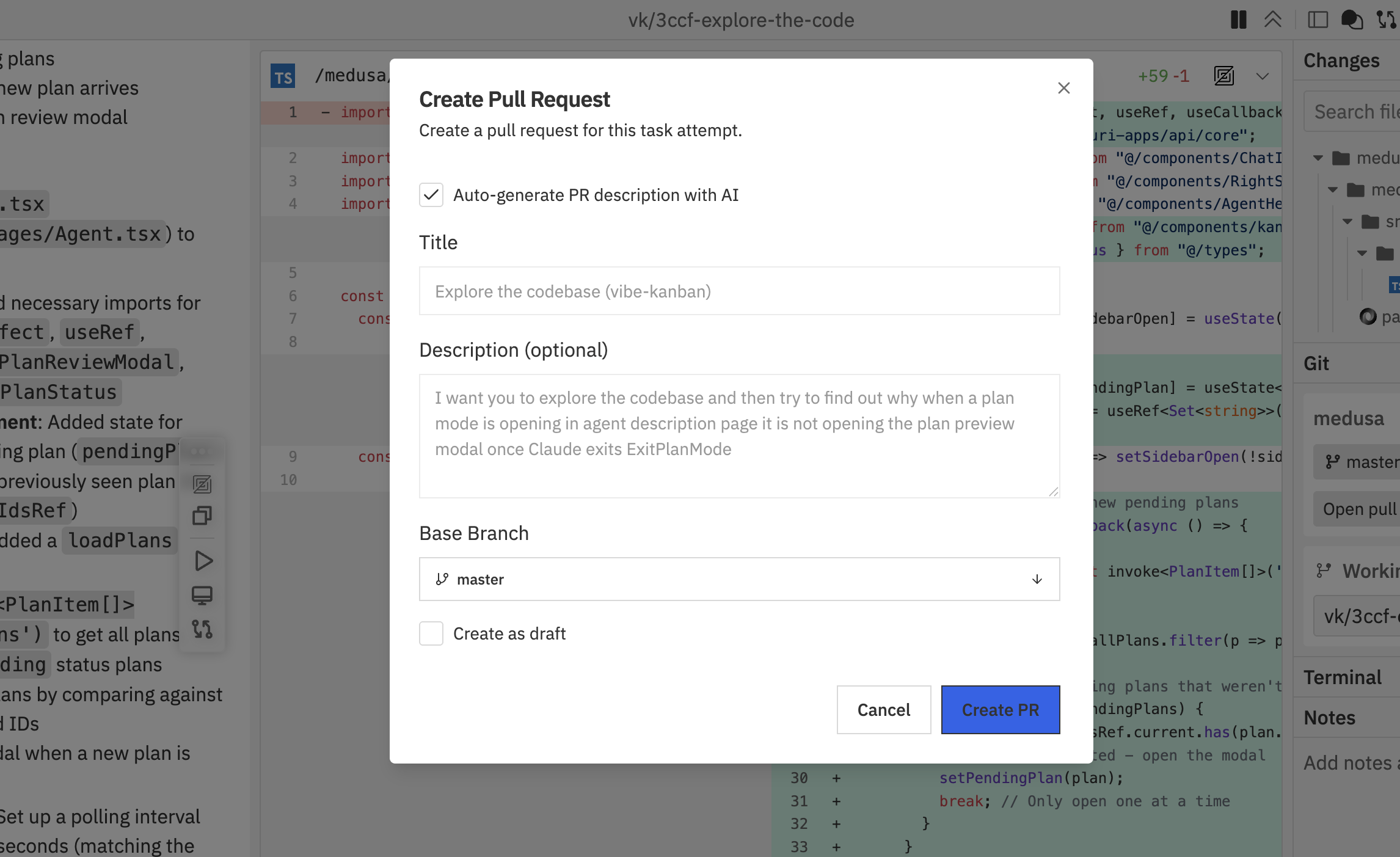
Creating a PR
From the Git panel:- Click Open pull request in the Git section of the right sidebar
- Fill in the PR details
- Press
Cmd/Ctrl + K - Select Create Pull Request
- Auto-generate PR description with AI - Let AI write the description based on your changes
- Title - PR title (auto-filled from task name)
- Description - Optional details about the changes
- Base Branch - The branch to merge into
- Create as draft - Mark as draft PR
- Click Create PR
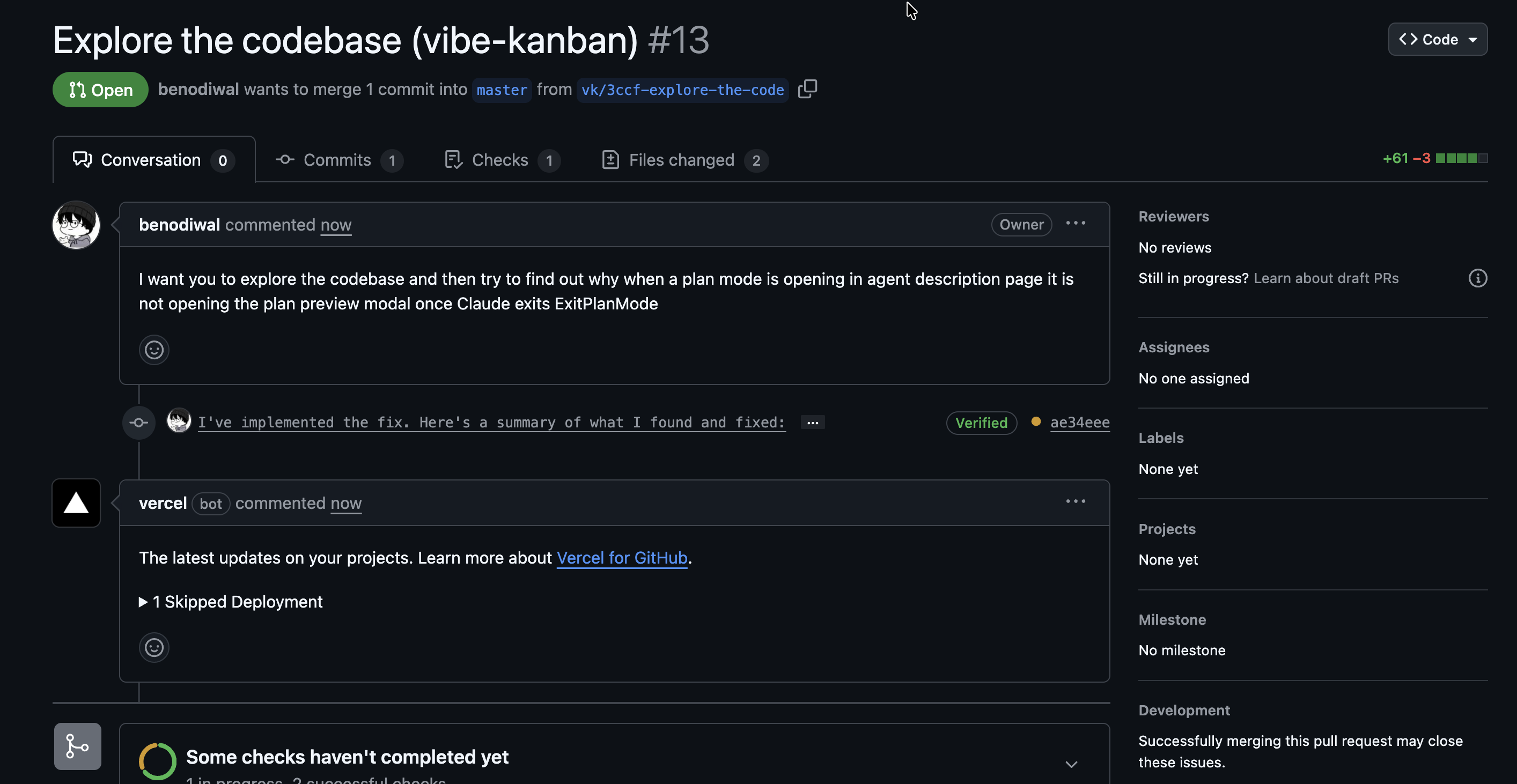
Draft PRs
Enable Draft mode when:- Work is still in progress
- You want early feedback before completion
- CI checks should run but reviewers shouldn’t merge yet
Multi-Repo PRs
For workspaces with multiple repositories:- Create PRs for each repo separately
- Use the Repo Actions in the command bar
- Reference related PRs in descriptions
Merging Changes
Merge the workspace branch into the configured target branch when direct merge is allowed.Merge Process
From the Git panel:- Click the dropdown arrow next to Open pull request
- Select Merge
- Press
Cmd/Ctrl + Kand select Merge
Before Merging
The workspace checks whether direct merge is allowed:- Up to date: Merge proceeds normally.
- Behind target: Jaidu prompts you to rebase first.
- Open pull request exists: Direct merge is blocked. Close or merge the PR before using direct merge.
- Target branch is remote-only: Direct merge is blocked. Create a pull request instead.
Rebasing
Keep your workspace branch up to date with the target branch.Rebase Process
From the Git panel:- Click the target branch dropdown (e.g., main)
- Select Rebase from the menu
- Press
Cmd/Ctrl + Kand select Rebase
Handling Conflicts
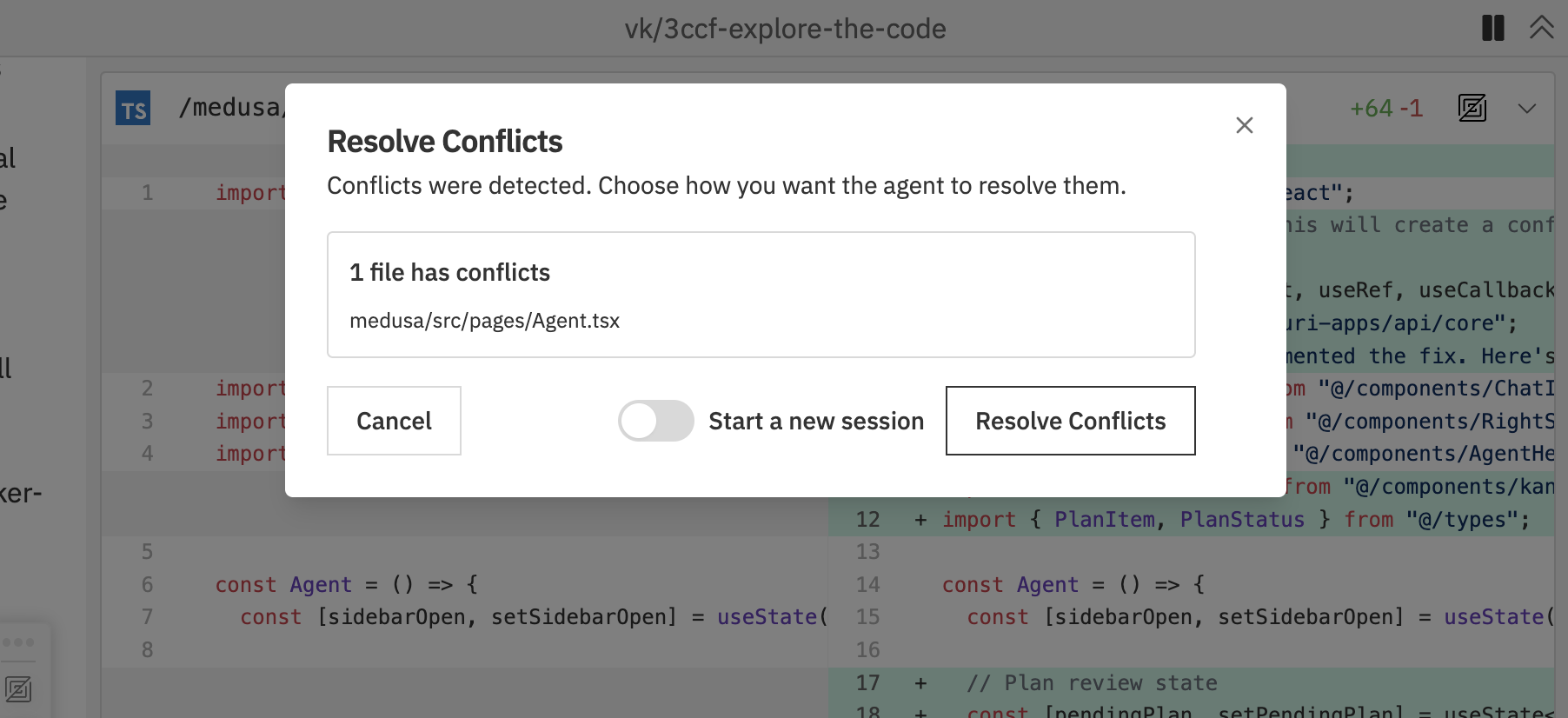
- The workspace shows a conflict resolution dialog
- List of conflicting files is displayed
- Resolve conflicts in your editor
- Mark files as resolved
- Continue or abort the rebase
When to Rebase
- Before creating a pull request
- When the target branch has new commits
- Before merging to ensure a clean history
- When prompted due to being behind target
Changing Target Branch
Switch the branch you’re merging into.Changing the Target
From the Git panel:- Click the target branch dropdown (e.g., main) in the Git section
- Select a new target branch from the list
- Press
Cmd/Ctrl + Kand select Change Target Branch - Choose the new target branch
Forking A Workspace
Forking creates a child workspace from the current state of an existing workspace. If the source workspace has uncommitted changes, the host creates an automatic checkpoint commit first. The child workspace starts from that checkpoint on its own branch/worktree and gets its own thread history. Jaidu creates or resumes the Codex thread only when you send a message inside the child workspace. Until that first Codex turn, the child workspace may not have a CLI Thread ID to copy. Use fork when you want to:- try another approach without disturbing the current workspace;
- hand off a checkpoint to another thread;
- branch from Codex work before deciding which path to keep.
Pushing Changes
Push your commits to the remote repository.When Push is Available
The Push command appears when:- You have unpushed commits
- A pull request is open for the branch
Pushing
From the Git panel:- Click the Push button when it appears (shows when you have unpushed commits)
- Press
Cmd/Ctrl + Kand select Push
Push is contextual - it only appears when there are changes to push and a PR exists.
Multi-Repository Git Operations
For workspaces with multiple repositories, manage each repo independently.Per-Repository Actions
Access via command bar’s Repo Actions page:| Action | Description |
|---|---|
| Create PR | Create PR for specific repository |
| Merge | Directly merge that repository’s workspace branch into its target branch when allowed |
| Rebase | Rebase specific repository |
| Change Target | Change target for specific repo |
Coordinating Changes
When working across repos:- Make related changes in each repository
- Create linked PRs referencing each other
- Merge in the correct order based on dependencies
- Verify integration after merging
Conflict Resolution
When git conflicts occur:Conflict Dialog
The workspace displays a conflict resolution dialog showing:- List of conflicting files
- Options to resolve or abort
Resolution Steps
- Open conflicting files in your editor
- Resolve the conflicts manually
- Save the resolved files
- Return to the workspace
- Continue the operation
Aborting
If you can’t resolve conflicts:- Click Abort in the conflict dialog
- The operation is cancelled
- Your branch returns to its previous state
Best Practices
Branch Hygiene
- Rebase regularly to stay current with target
- Create PRs early for visibility
- Use descriptive branch names
- Delete merged branches
PR Workflow
- Complete your changes
- Review diffs in the changes panel
- Rebase if behind target
- Create a PR (draft if work continues)
- Address review feedback
- Merge when approved
Multi-Repo Coordination
- Plan cross-repo changes upfront
- Document dependencies between PRs
- Merge in dependency order
- Test integration thoroughly
Troubleshooting
'You have uncommitted changes' error
'You have uncommitted changes' error
What it means: You have modified files that haven’t been committed.Solutions:
- Let the agent finish its current work (it may be about to commit)
- Check the Changes panel to see what’s modified
- Commit the changes using the terminal:
git add . && git commit -m "WIP" - Or stash them:
git stash
'Branch is behind target' warning
'Branch is behind target' warning
What it means: The target branch (e.g.,
main) has new commits that your working branch doesn’t have.Solution: Rebase your branch to include the new changes:- Open command bar (
Cmd/Ctrl + K) - Select Rebase
- Resolve any conflicts if prompted
Merge conflicts during rebase
Merge conflicts during rebase
What it means: Your changes and the target branch’s changes modify the same lines of code.Solutions:
- Jaidu shows a conflict dialog listing affected files
- Open each conflicting file in your editor
- Look for conflict markers (
<<<<<<<,=======,>>>>>>>) - Choose which version to keep (or combine them)
- Save the file and mark it as resolved
- Continue the rebase
PR creation fails
PR creation fails
Possible causes:
- Not authenticated with GitHub
- No changes to create a PR from
- Branch doesn’t exist on remote
- Check GitHub integration in Settings → Integrations
- Ensure you have committed changes
- Try pushing the branch first using the terminal
Can't push to remote
Can't push to remote
Possible causes:
- No remote configured
- Authentication issues
- Remote branch is protected
- Verify remote is configured:
git remote -vin terminal - Check GitHub authentication in Settings
- For protected branches, create a PR instead of pushing directly
Related Documentation
- Multi-Repo & Threads - Working with multiple repositories
- Command Bar - Git commands and shortcuts
- GitHub Integration - GitHub setup and features