jaidu-agent owns the thread history, filesystem,
Git, terminal, and Codex execution for the workspace.
What is a Thread?
A thread is a single conversation with Codex. Think of it like a chat thread:- Each thread has its own conversation history - messages, code changes, and context
- Threads share the same files - changes from one thread are visible to all threads
- Threads are independent processes - one can be running while another is idle
Key point: Threads share files but not conversation context. If Thread 1 makes changes, Thread 2 can see those file changes but doesn’t know what instructions Thread 1 received.
Understanding Token Limits
AI models have a context window - a limit on how much text they can “remember” in a conversation. When you hit this limit:- Codex may lose earlier parts of the conversation
- Responses may become less accurate
- You’ll see the context gauge turn orange or red
When to Create a New Thread
Token limits reached
Context gauge shows high usage - start fresh to give Codex full context capacity.
Parallel work
Have Codex threads work on independent parts simultaneously (backend API + frontend UI).
Different approaches
Try an alternative solution without losing your original conversation.
Different runtime resources
Use one runtime preset for broad MCP access and another for a smaller focused
resource set.
When NOT to Create a New Thread
- Continuing related work - Keep using the same thread if Codex needs context from earlier messages
- Providing feedback - Use the same thread to tell Codex what to fix
- Small follow-ups - “Also add a loading spinner” belongs in the current thread
All threads within a workspace share the same repositories and git state. Changes made by one thread are visible to others.
Starting a new thread in an existing workspace does not create a new folder,
worktree, or branch. Use branch/fork if you need a separate workspace lineage.
Creating a New Thread
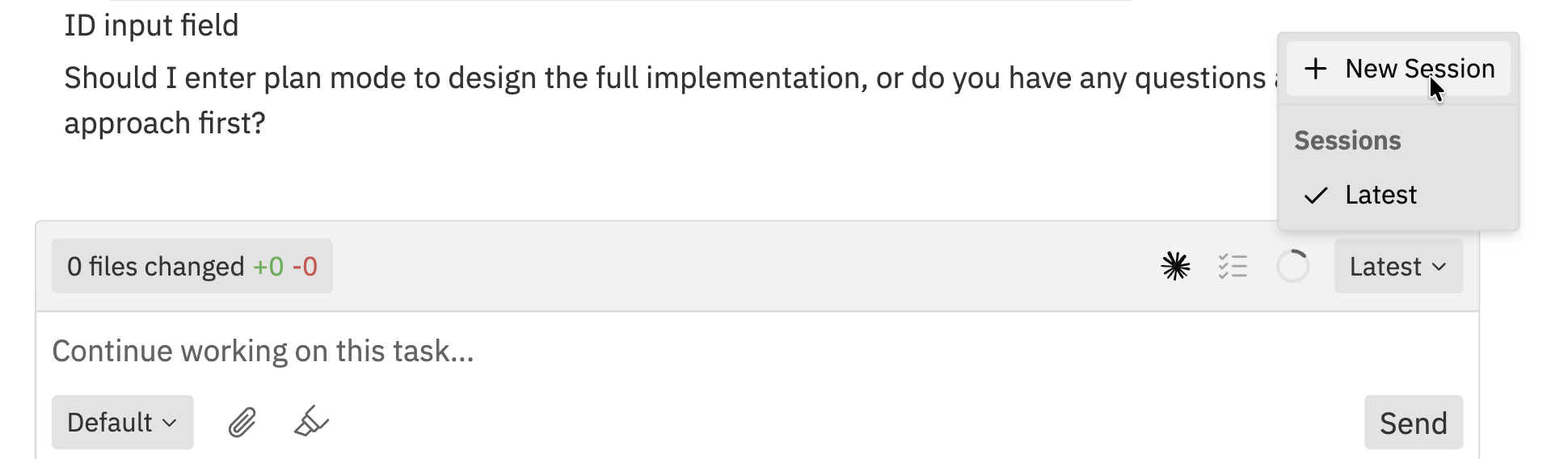
Open the Thread Dropdown
Click the thread dropdown (showing “Latest” or the thread name) in the chat toolbar.
Switching Between Threads
To switch to a different thread:- Click the thread dropdown in the chat toolbar
- Select the thread you want to switch to
- Thread name - Based on the initial task or auto-generated
- Latest indicator - Shows which thread was most recently active
Switching threads doesn’t interrupt any running Codex process. Each thread
continues working independently.
Thread States
Threads can be in different states:| State | Description |
|---|---|
| Running | Codex is actively processing and making changes |
| Idle | Waiting for your input |
| Needs Attention | Codex is waiting for approval or has a question |
Managing Threads
Renaming Threads
Threads are automatically named from the initial task description. Open the selected thread’s... menu and choose Rename thread to change the name.
Viewing Thread History
Each thread maintains its complete conversation history. Scroll up in the conversation panel to view earlier messages and Codex actions.Stopping Codex
If Codex is running in the current thread:- Click the Stop button in the navbar, or
- Use the keyboard shortcut to stop execution
Runtime Resources In Threads
Workspace threads can use different runtime resource selections per turn:- Create a new thread
- Select the workspace default, an organisation runtime preset, or custom skills and MCP servers before sending your message
- Send the message or queue it while another Codex turn is running
Thread Best Practices
When to Create New Threads
- Task complexity - Break complex tasks into smaller threads
- Token limits - Start fresh when conversations get long
- Different approaches - Try alternative solutions without losing progress
- Parallel work - Have Codex threads work on independent parts simultaneously
Keeping Threads Organised
- One focus per thread - Keep each thread focused on a specific goal
- Use workspace notes - Document which thread is for what purpose
- Review before switching - Check the changes panel before switching threads
Resolving Conflicts Between Threads
When multiple threads make changes to the same files:- The changes panel shows all modifications across threads
- Review changes carefully before committing
- Use the inline comment feature to mark areas needing attention
Git handles most conflicts automatically. For complex conflicts, see Git Operations.
Related Documentation
- Creating Workspaces - Setting up new workspaces
- Main Chat - Project-level threads bound to a host root
- Interface Guide - Understanding the workspace layout
- Multi-Repo & Threads - Working with multiple repositories
- Command Bar - Quick actions and keyboard shortcuts