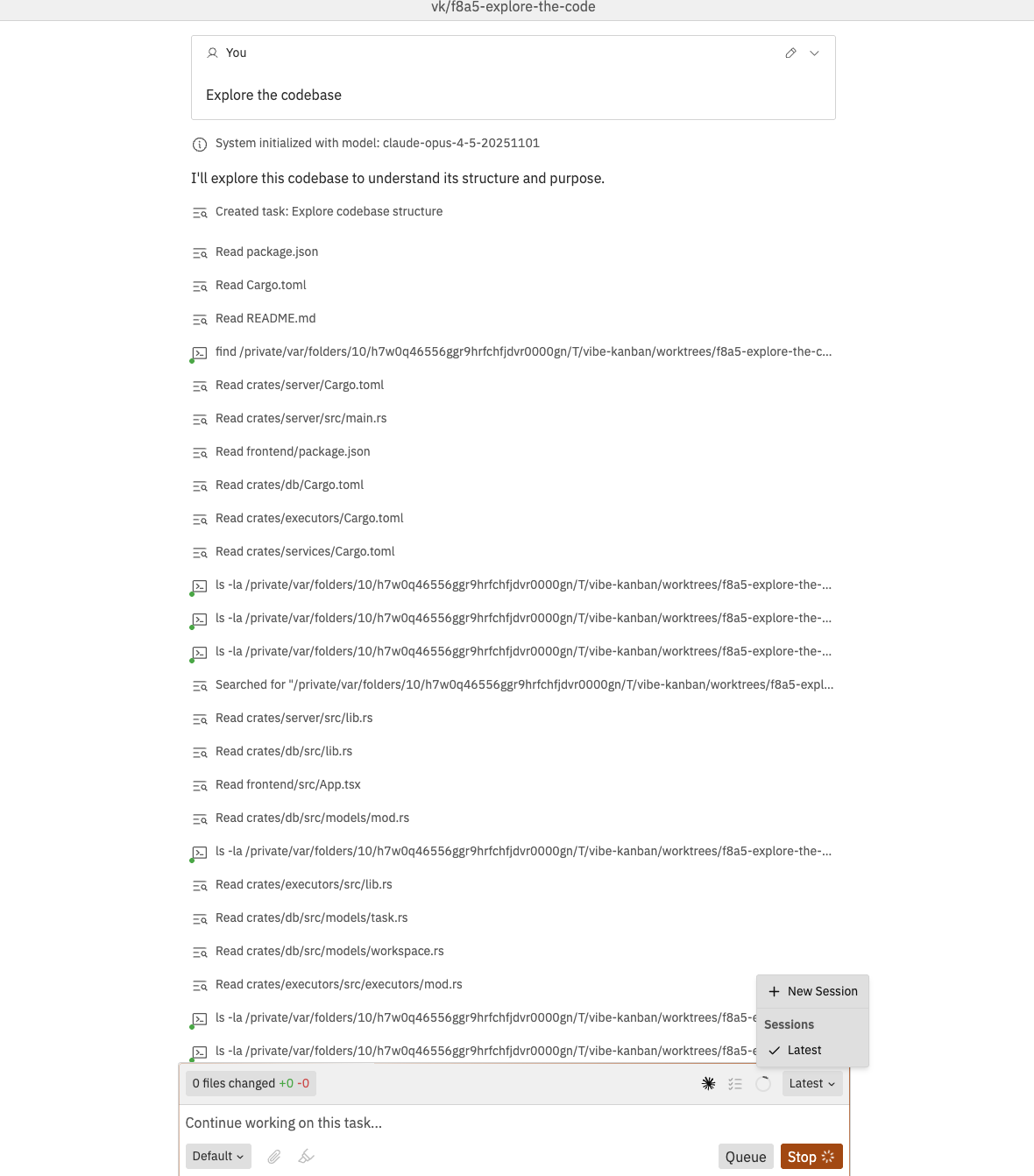
Interact with Codex through the workspace conversation panel
The chat interface is your primary way to communicate with Codex in a workspace
thread. The thread runs on the selected registered host and uses the workspace
folder, Git branch, terminal, and files.
Installed scenarios can appear in the chat toolbar as workflow actions. They
start a saved linear chain of agent prompts, human gates, and scenario calls
using the installation’s runtime mappings and default launch inputs.Before a scenario appears here, an admin must install it in Settings →
Scenarios, configure runtime mappings, enable it, and turn on Toolbar.
When you start one from chat, Jaidu shows a launch preview with steps, inputs,
runtime requirements, and backend preflight issues.
Scenario Workflows
Learn how installed scenarios launch, run, pause at human gates, and keep snapshots.
Use the compact model selector to choose the model and reasoning level for a
Codex turn. The selector is available after you select a registered host while
creating a workspace, and in existing or new threads inside a task workspace.
It is not shown in Main Chat. In a workspace thread, it appears before
Runtime resources.The selected registered host supplies the available models, each model’s
reasoning options, and the effective Codex model and reasoning defaults for the
selected profile and project. The focused workspace controls do not include a
Default choice: they show concrete values for the next turn. When you choose
a model, Jaidu also selects a compatible remembered or default reasoning level.
You can then change the reasoning level from the same control.Your selection applies to:
a direct send;
a queued follow-up;
a message retry or edit.
During workspace creation, Jaidu retains the selection in the creation draft
and sends it with the initial create-and-start request. In a workspace thread,
the model and reasoning remain selected after you submit a message. Changing
them while Codex is running does not switch the active turn; it changes only a
later send, queue, retry, or edit. A queued follow-up keeps the model and
reasoning captured when you queued it, even if you change the composer before
that follow-up starts.
Model and reasoning are per-turn execution choices. They are separate from
Runtime resources, which select skills and MCP servers.
Jaidu does not persist the provisional result while the host catalogue is
loading. When final discovery arrives, Jaidu fills a missing selection with the
host’s effective defaults. Older hosts that do not report defaults use a valid
advertised model and compatible reasoning fallback instead. If the host cannot
read its Codex configuration, it finalises that concrete fallback without
clearing your message or draft.A saved non-null model or reasoning selection takes precedence over host
defaults. A saved model that no longer appears in the catalogue remains visible
as Unavailable so that Jaidu does not silently submit a different model.
Choose an available model if the host can no longer run the saved one.
Use the runtime resource selector in the chat input to choose which skill and
MCP server definitions are selected for the next Codex turn. You can use the workspace
default, choose an organisation runtime preset, or customise the resources for
one follow-up.The selection applies to direct sends, queued follow-ups, and message retries.
It does not mutate the saved workspace runtime snapshot.
Runtime presets choose resource access only:
skills exposed by the selected host executor;
MCP servers exposed by the selected host executor;
default, preset, or custom resource modes.
Runtime presets do not change sandbox, approval, reasoning, prompt, command, or
environment settings.Use the separate model selector to choose a model and reasoning level for a
turn. That choice is sent with the turn and is not stored in the runtime preset.When you change the selected skills before sending a message, the changed skill
set applies to that next workspace turn. For a resumed thread, Jaidu refreshes
the thread’s skill inventory before Codex resumes so older preset turns do not
intentionally carry deselected skills forward. If that refresh cannot be done
safely, the send fails with a runtime cleanup error instead of continuing with
stale skill instructions.The selector shows the selected resources and verifies them against the current
host inventory. Its Selectable status means the resource can be passed to the
next Codex turn; it does not mean MCP tools are already available to the agent.
MCP servers still have a second launch-time step: Codex must start the selected
server and the server must advertise callable tools. /mcp output is labeled
when it is showing base host MCP status instead of the per-turn runtime preset.
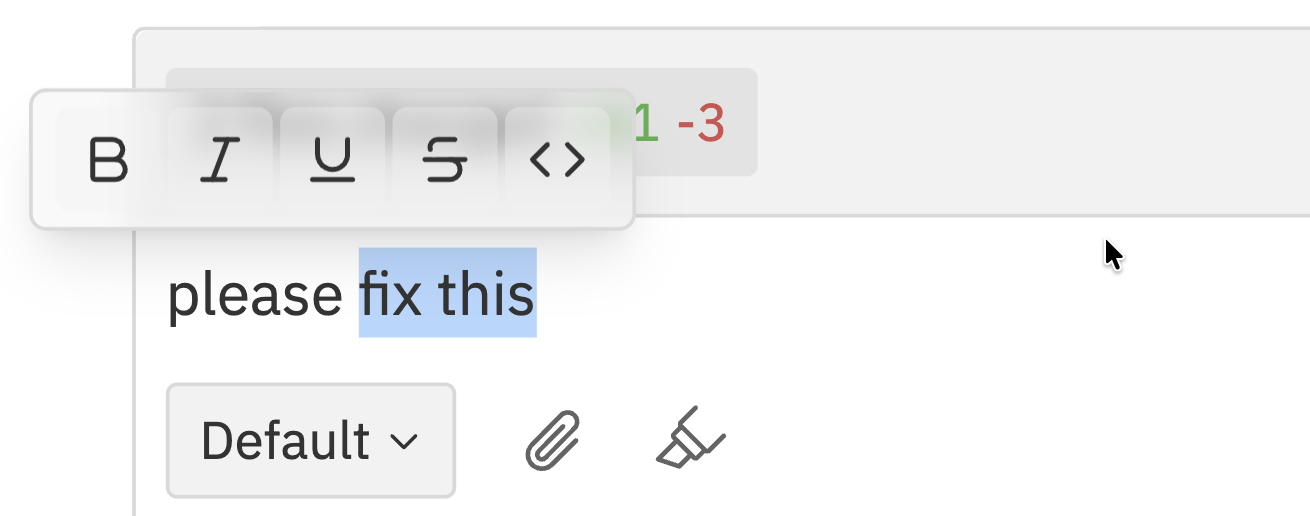
Type your feedback in the chat input explaining what should be different
Click Request Changes
Codex revises the plan based on your feedback
Review the new plan and approve or request more changes
Be specific in your feedback. Instead of “that’s not right”, say “don’t
modify the database schema - just add the validation to the existing User
model.”
Approval timeouts: If you don’t respond to an approval request, it may
timeout. You’ll need to send a new message to restart the task.