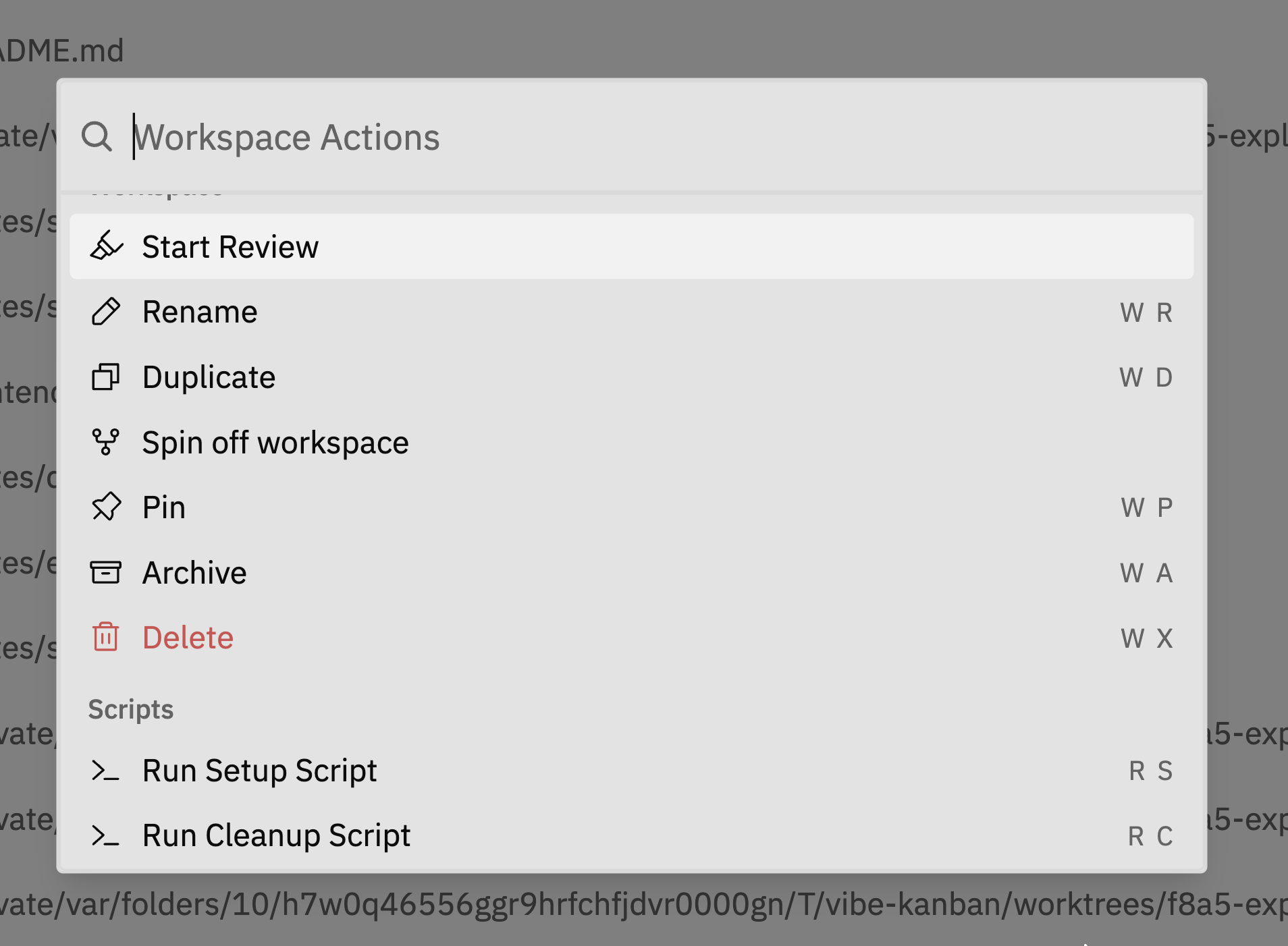
Workspace Actions are available from both the command bar and the workspace sidebar. These actions require an active workspace - they won’t appear on the create workspace page.
Accessing Workspace Actions
You can access workspace actions in two ways: From the sidebar: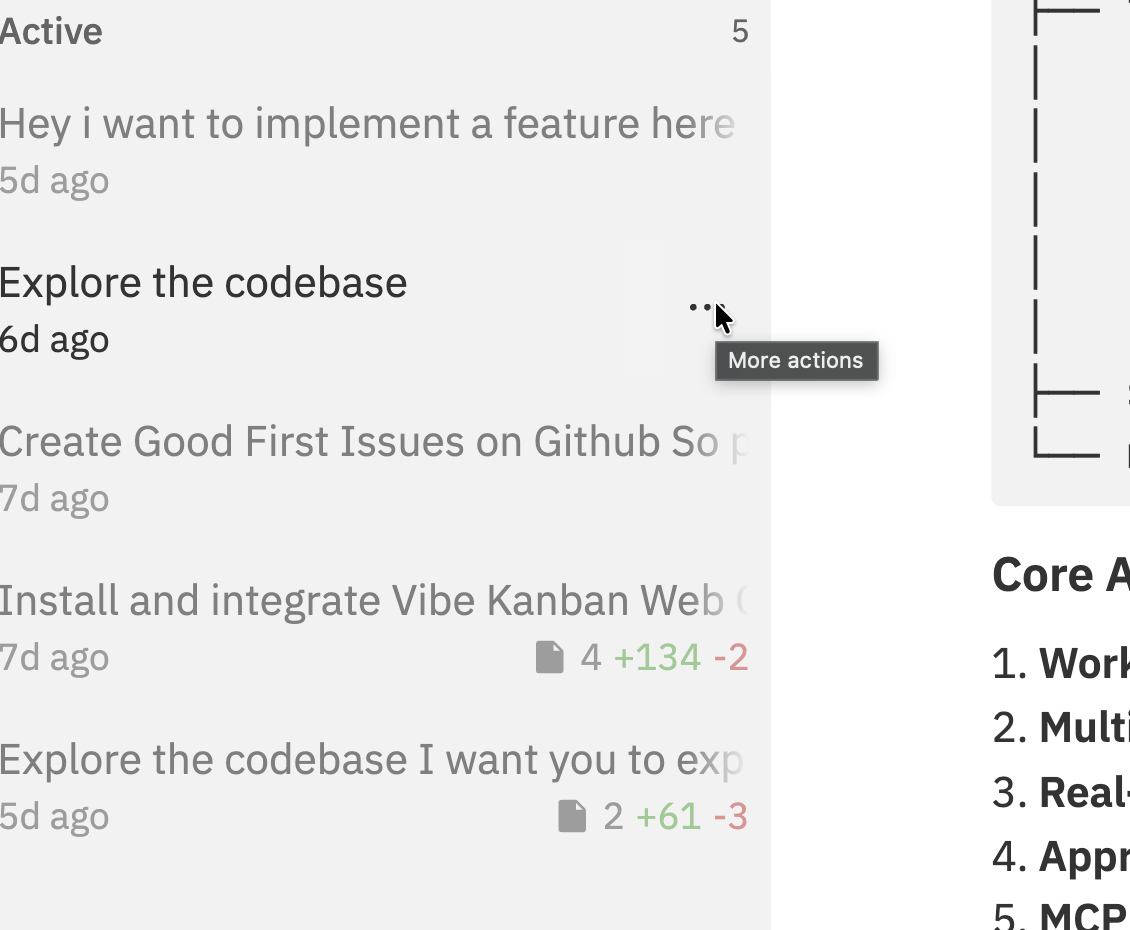
- Press
Cmd/Ctrl + K - Go to Workspace Actions
- Select the action you want
Pinning Workspaces
Keep important workspaces at the top of your list by selecting Pin Workspace from the workspace actions. Pinned workspaces appear at the top of the sidebar regardless of their last activity time.Archiving Workspaces
When you’re done with a workspace but might want to return to it later, archive it to keep your workspace list clean. Select Archive from the workspace actions, or click the Archive button () in the top left of the navbar. Archived workspaces can be viewed by clicking View Archive at the bottom of the sidebar.Archiving preserves everything. Your conversation history, threads, notes, and worktree files all remain intact. You can unarchive at any time to continue working.
Deleting Workspaces
To permanently delete a workspace, select Delete Workspace from the workspace actions.What Gets Deleted
When you delete a workspace:| What | Deleted? | Notes |
|---|---|---|
| Workspace data | Yes | Conversation history, threads, notes |
| Git worktree | Yes | The working directory and its files |
| Git branch | No | The branch remains in your repository |
| Commits | No | All commits are preserved in the repository |
| Original repository | No | Your source repository is never touched |
Your code is safe. Deleting a workspace removes the worktree copy, but all commits remain in your original repository. If you’ve pushed to remote or created a PR, your work is preserved.
Archive vs Delete
| Action | Worktree | Conversation | Can Restore? |
|---|---|---|---|
| Archive | Kept on disk | Preserved | Yes - unarchive anytime |
| Delete | Removed | Deleted | No - permanent |
- You might return to this work later
- You want to keep the conversation history
- You’re cleaning up your workspace list but not done with the task
- The task is complete and merged
- You want to free up disk space
- You don’t need the conversation history
Disk Space and Worktree Location
Each workspace creates a git worktree - a separate working directory with a full copy of your repository’s tracked files. Multiple workspaces for large repositories can consume significant disk space.Where Worktrees Are Stored
Worktrees are stored on the selected host. You can configure a custom location in Settings → General → Workspace Directory.Checking Disk Usage
Open a terminal on the selected host and check the workspace directory configured in settings. If no custom directory is configured, check the host’s temporary workspace location.Freeing Up Space
To reduce disk usage:- Delete completed workspaces - Use Delete (not Archive) for tasks that are finished and merged
- Review archived workspaces - Archived workspaces still consume disk space
- Configure cleanup scripts - Add cleanup scripts to remove build artifacts (like
node_modules) when workspaces close
Manual Worktree Deletion
If you manually delete a worktree directory (e.g., usingrm -rf in terminal), Jaidu will automatically recreate it the next time you open that workspace. The worktree is recreated from the branch’s last commit.
Orphan Cleanup
Jaidu automatically cleans up “orphaned” worktrees on startup - these are worktree directories that no longer have a matching workspace in the database (e.g., if the app crashed during deletion). This cleanup runs automatically, so you don’t need to manually manage stale worktree directories.Renaming Workspaces
To rename a workspace, select Rename Workspace from the workspace actions and enter the new name.Fork Branch
To continue from the current workspace state in a child workspace, select Fork Branch from the workspace actions. If the workspace has uncommitted or untracked changes, Jaidu asks whether to create a local checkpoint commit before forking. After confirmation, the child workspace starts from that checkpoint boundary. The forked child workspace:- uses the same repositories as the parent workspace;
- sets each repository target branch to the parent workspace branch;
- records branch lineage so the Branch Graph can show the parent/child relationship;
- starts with its own fresh thread history in a new host-side folder/worktree.
Fork Branch is not available for Main Chat workspaces. Main Chat stays bound to
the project root; create an issue workspace when you need branch/fork workflows.
Related Documentation
- Creating Workspaces - Setting up new workspaces
- Interface Guide - Understanding the workspace layout
- Command Bar - Quick actions and keyboard shortcuts