This page covers configuring MCP servers for Codex threads launched through
Jaidu.
Overview
MCP servers extend Codex with additional tools and resources. You can use them to add browser automation, documentation lookups, remote logs, issue-management tools, and other capabilities to your Codex threads.
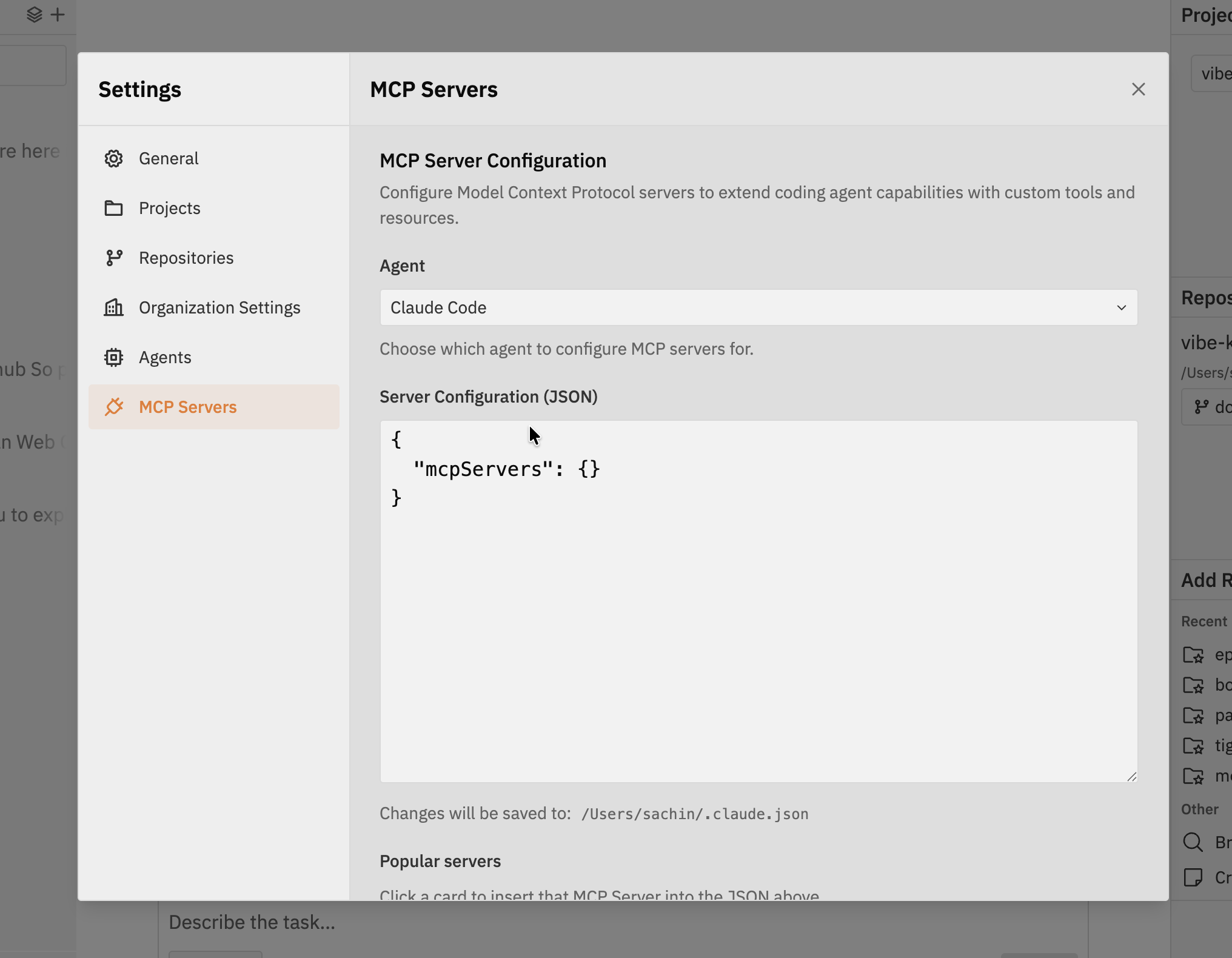
Accessing MCP Server Configuration
- Navigate to Settings in the Workspaces navbar
- Click the MCP Servers tab
- Edit the Codex MCP configuration JSON
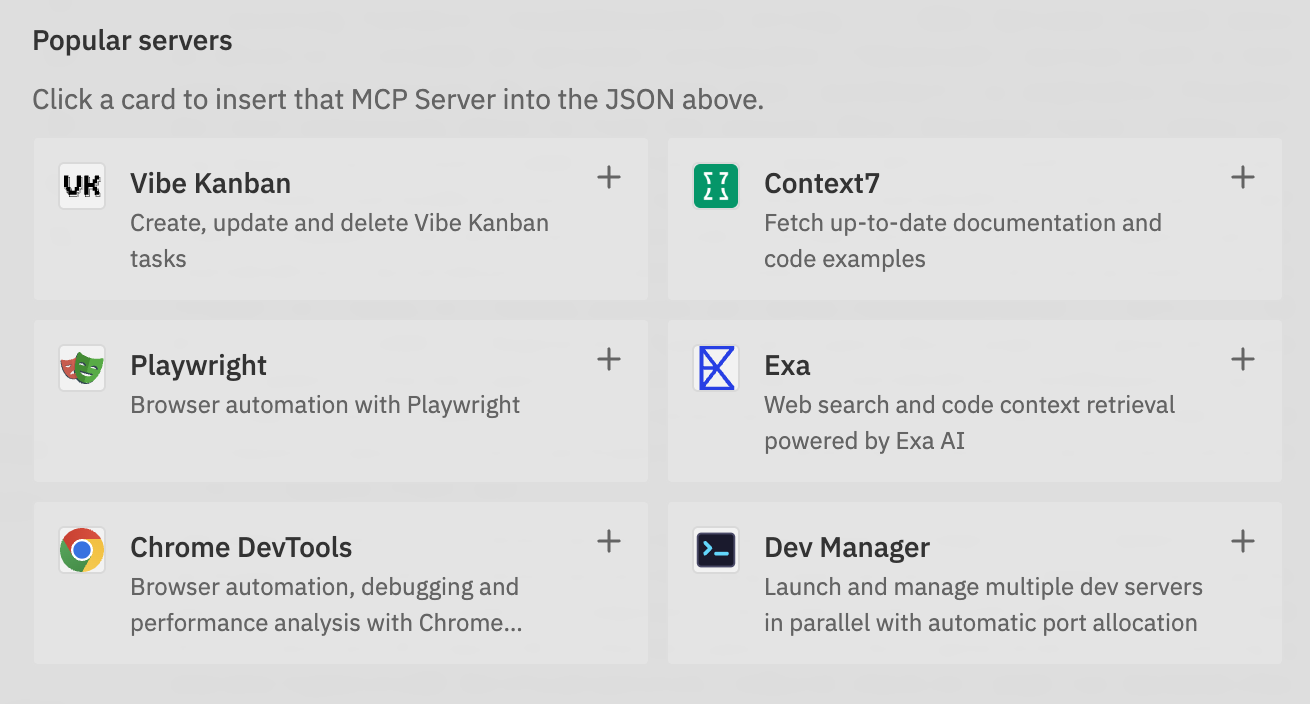
Popular MCP Servers
Jaidu provides one-click installation for popular MCP servers. Click a card to insert a pre-configured MCP server into the Codex MCP settings.
Connect Jaidu Project Management MCP from Codex
Use the hosted Jaidu Project Management MCP server when you want Codex to read
and work with the Jaidu projects your account can access. The server uses
browser-based OAuth, so you do not need to download or run a local MCP binary.
Add the hosted MCP server
Run this command in the environment where you use Codex:codex mcp add jaidu-project-management \
--url https://app.artemiopanzini.fun/mcp/project
Authorise Jaidu in the browser
If the browser did not open during installation, or you need to authorise
again, start the OAuth login flow manually:codex mcp login jaidu-project-management \
--scopes organization:project-management:full
After approval, Codex stores the OAuth token locally and can use the
jaidu-project-management MCP server in future sessions.
Ask Codex to use Jaidu project context
In a Codex thread, ask for the project work you need. For example:Use the Jaidu Project Management MCP to list my available projects and show
the open tasks I can access.
If Codex cannot complete dynamic OAuth registration, add the built-in Codex
client identifier instead:codex mcp remove jaidu-project-management
codex mcp add jaidu-project-management \
--url https://app.artemiopanzini.fun/mcp/project \
--oauth-client-id jaidu-codex-public-mcp
The hosted MCP server enforces Jaidu permissions. Codex only sees projects and
tasks allowed by your account, organisation, and project access.
Adding Custom MCP Servers
You can also add your own MCP servers manually:
Open the Codex Configuration
Open Settings → MCP Servers and review the existing Codex JSON.
Update the JSON
Add your custom MCP server alongside any existing entries.{
"mcpServers": {
"existing_server": {
"command": "npx",
"args": ["-y", "some-existing-server"]
},
"my_custom_server": {
"command": "node",
"args": ["/path/to/my-server.js"]
}
}
}
Save and Test
- Click Save Settings
- Start or continue a Codex thread
- Check Codex logs if a server does not connect
These changes persist in Codex MCP settings and remain available across
threads. Use runtime presets to decide which saved MCP servers are exposed to a
specific workspace turn.
Best Practices
Add only the MCP servers you expect to use regularly. Too many tools dilute the agent’s context and make tool selection noisier.
Prefer servers that directly support your workflow, such as browser automation for frontend work or documentation retrieval for framework-heavy tasks.