Appearance
Customise how the application looks and feels:- Theme - Choose between Light and Dark colour schemes
- Language - Select your preferred language (Browser Default follows your system language)
Default Codex Profile
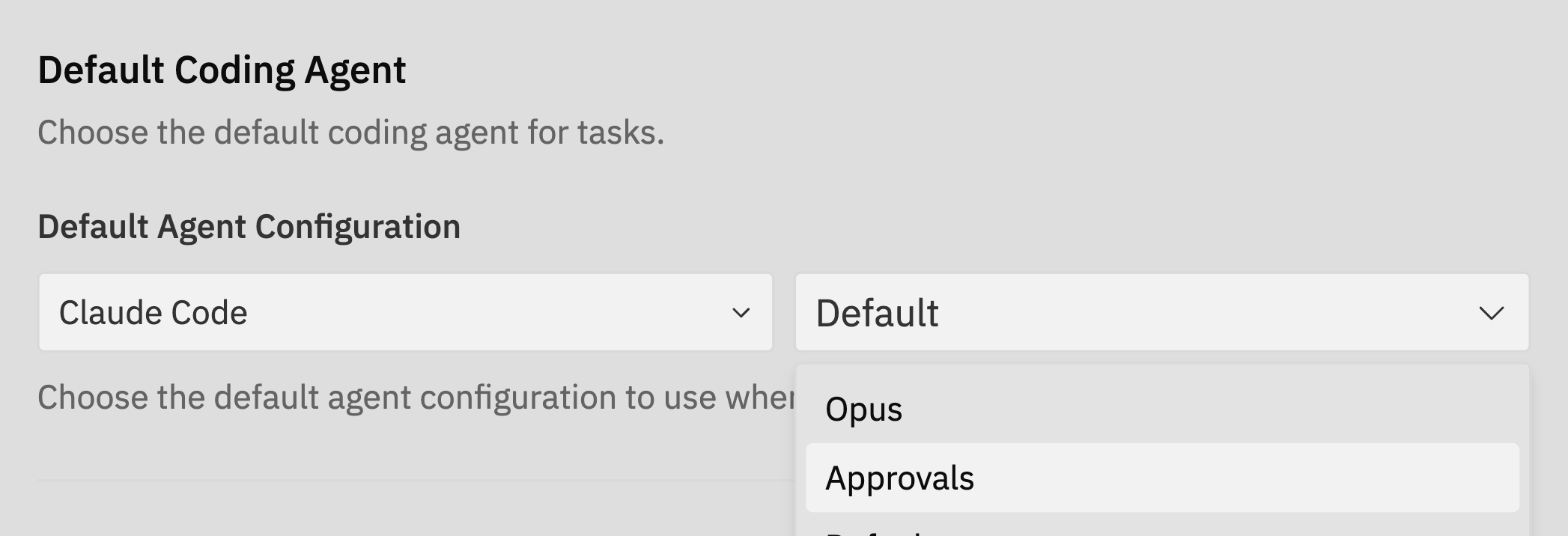
- Profile - Choose the default Codex profile such as
DEFAULT,SAFE, orHIGH_REASONING - Profile behaviour - Each profile can set sandbox mode, approval level, reasoning effort, and prompt extensions
Git
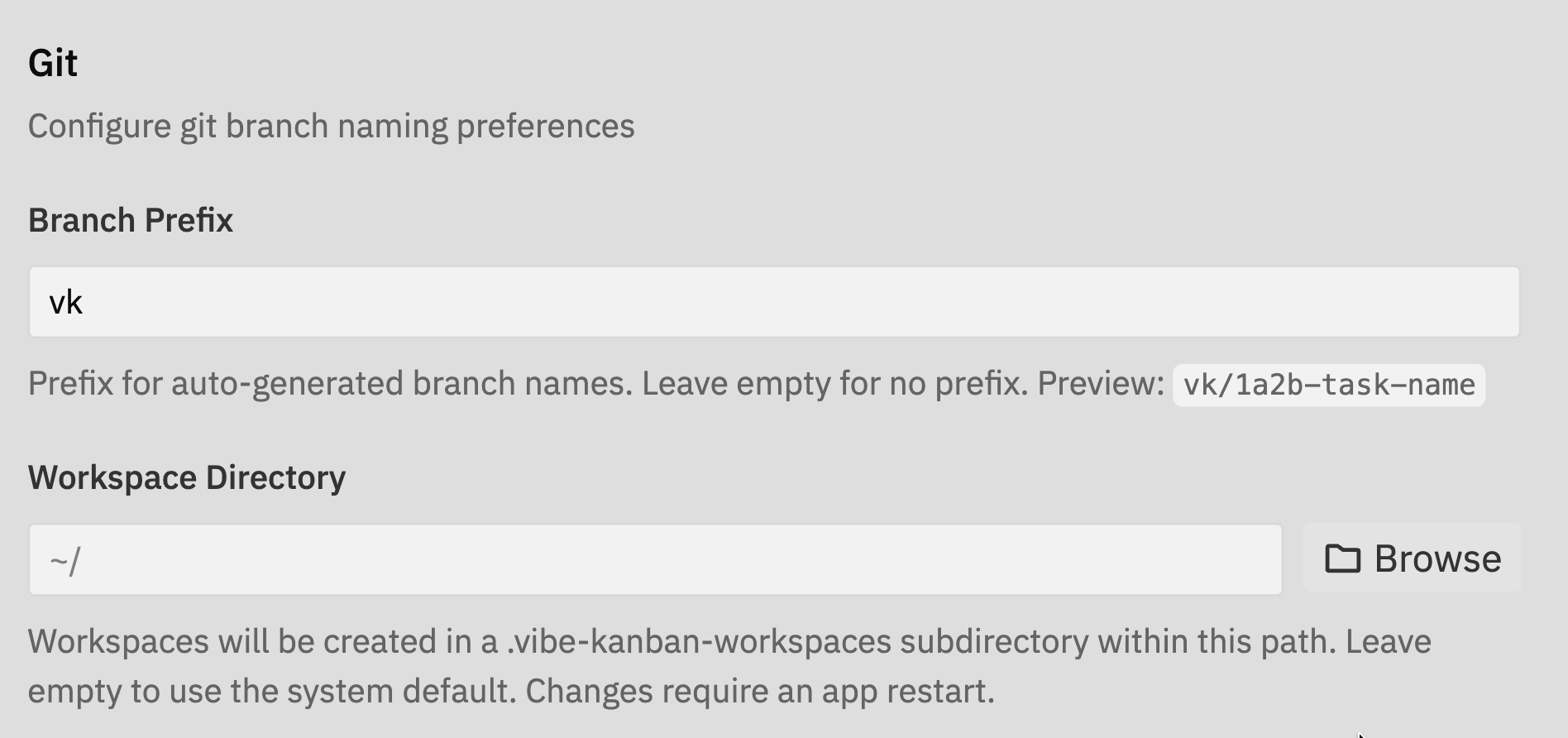
Branch Prefix
Set a prefix for auto-generated branch names. When you create a new workspace or task, Jaidu automatically creates a git branch for your changes.| Prefix Setting | Example Branch Name |
|---|---|
feature | feature/1a2b-implement-auth |
docs | docs/1a2b-implement-auth |
| (empty) | 1a2b-implement-auth |
Workspace Directory
Specify the base directory where the selected host stores workspace data. New workspaces are created under that host-managed workspace directory.Notifications
Configure how Jaidu alerts you about workspace progress and status changes.- Sound Effects - Play audio notifications when tasks complete or need attention
- Push Notifications - Receive browser notifications when Jaidu is not in focus
Telemetry
Enable or disable telemetry data collection to help improve Jaidu.Message Input
Choose the keyboard shortcut to send messages in the chat input (Enter or ⌘/Ctrl + Enter).
Tags
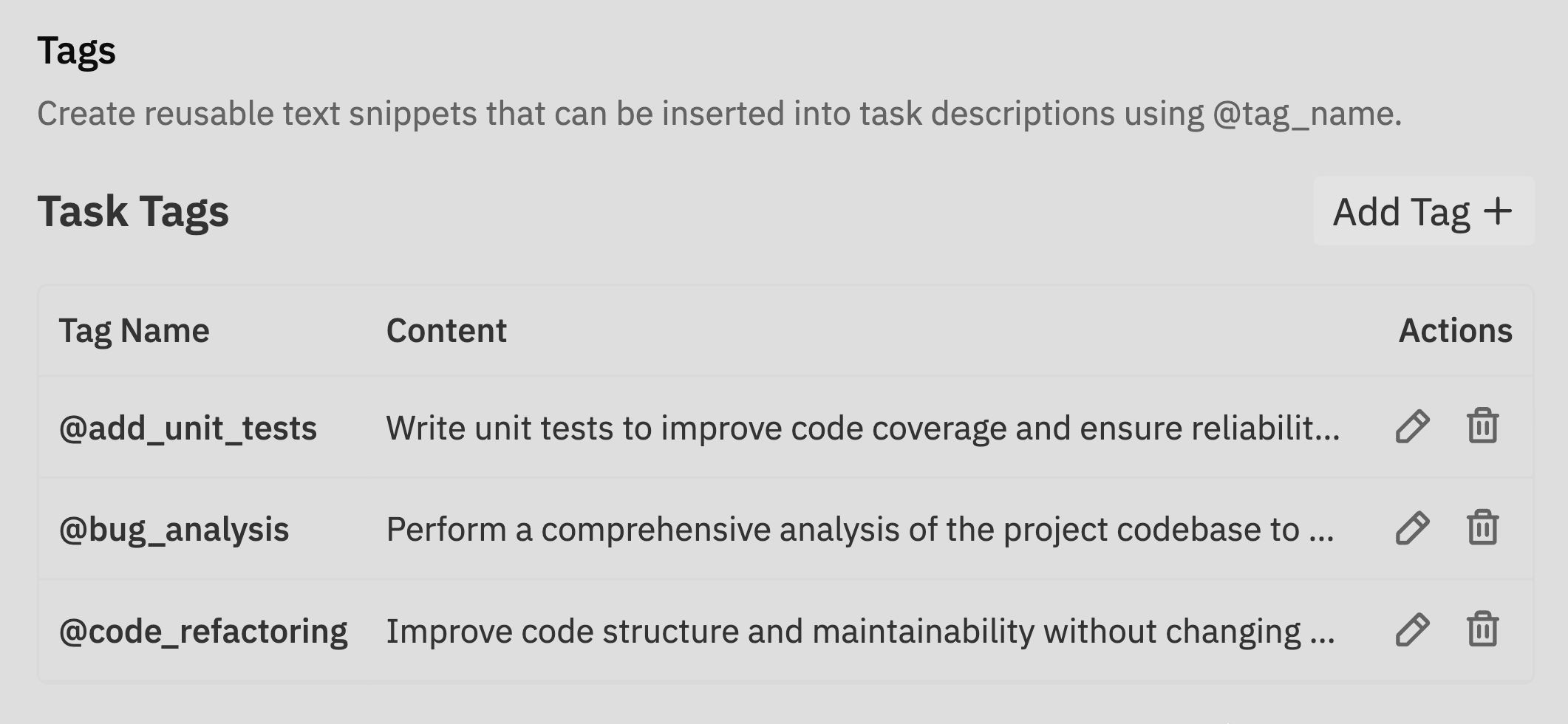
@tag_name.
Learn more about tags
Complete guide to creating and managing tags